
Delete a Player
Deleting a Wink Player removes it permanently from your account. This action cannot be undone.
Irreversible action
Once deleted, the player's configuration, assigned content, and schedules are removed from your account. If you want to use the device again, you will need to register it from scratch.
Accessing the Delete Option
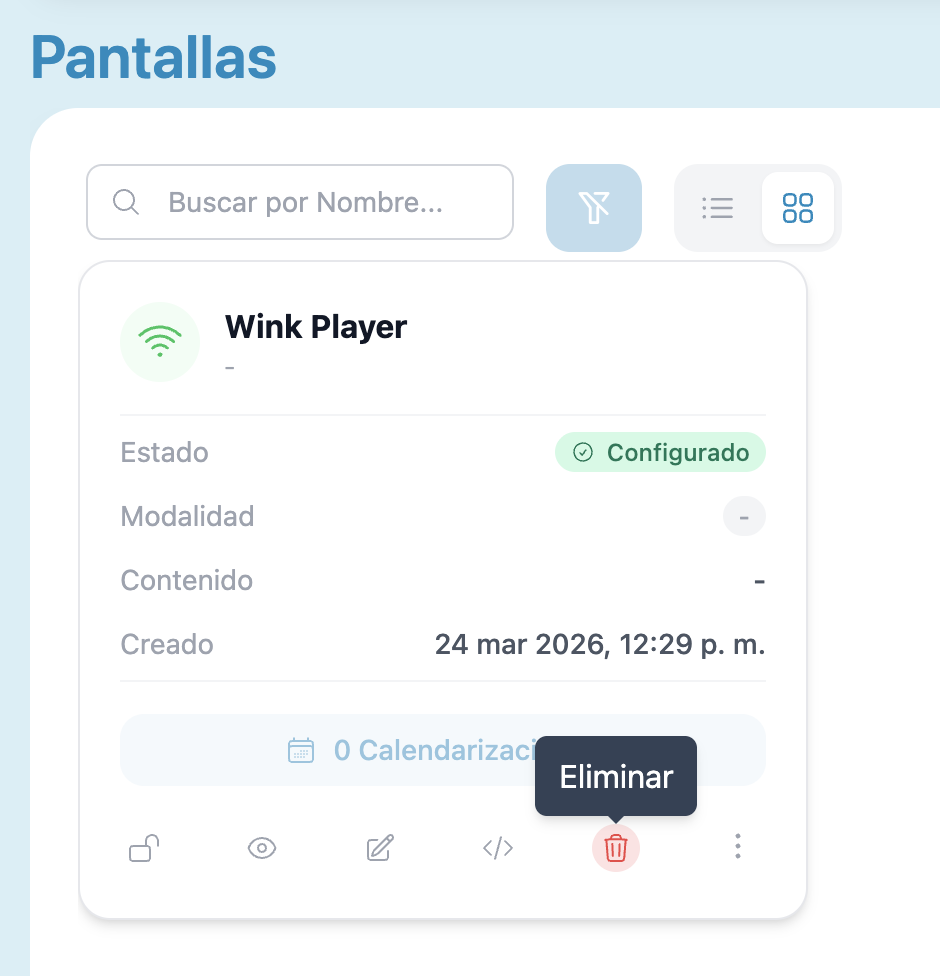
The delete button is available in both views of the Players section. It is identified by a red trash icon.
List view — At the right end of the player's row, click the red trash icon (tooltip: "Delete").

Card view — At the bottom of the player's card, click the red trash icon (tooltip: "Delete").
Confirmation Modal
Because this action is irreversible, Wink App requires you to confirm by typing the player's exact name before proceeding.
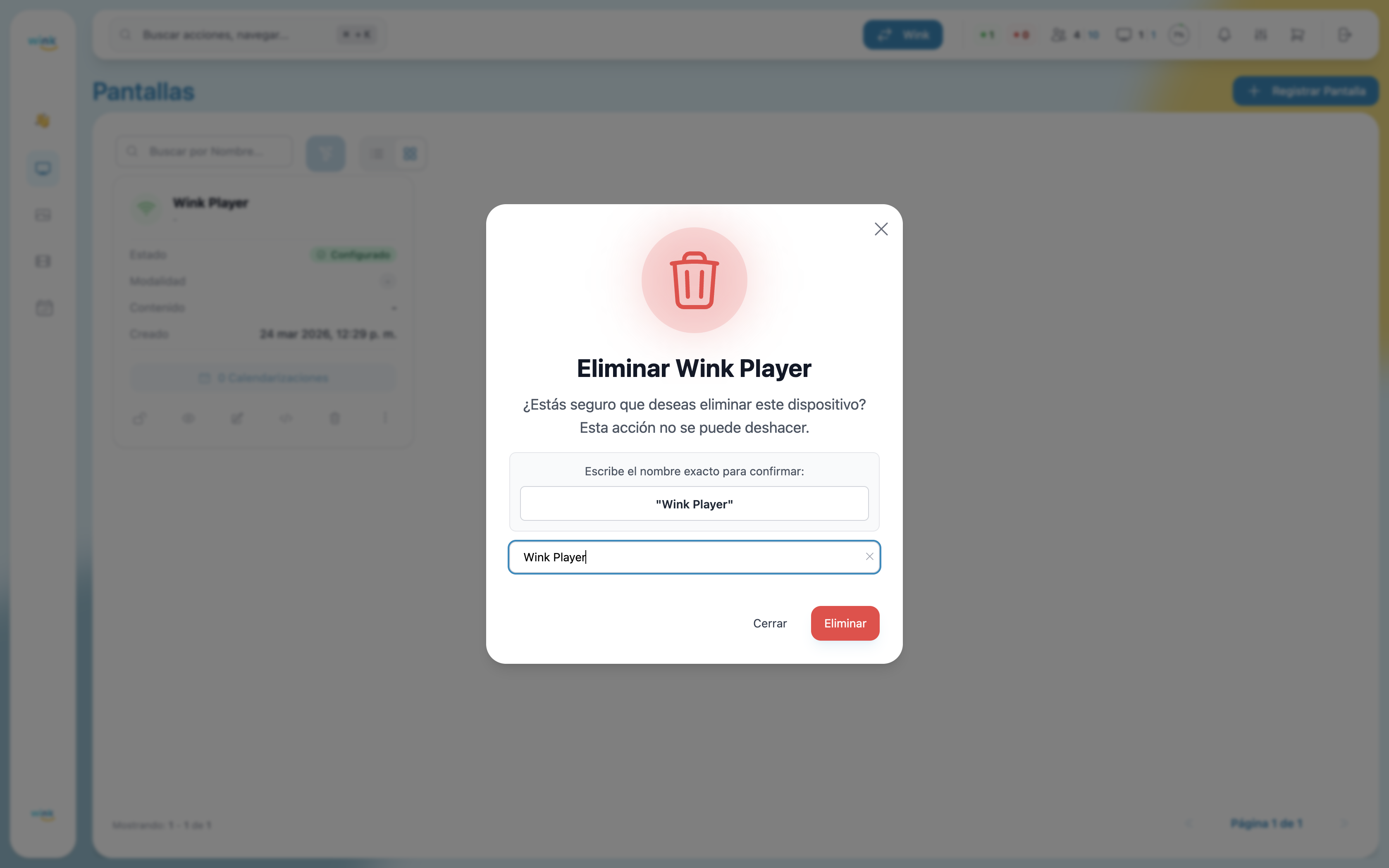
The modal shows:
- The name of the player you are about to delete.
- A warning that this action cannot be undone.
- A text field where you must type the exact player name shown on screen.
- A Cancel button to abort.
- A red Delete button that activates only once the name matches.
Type the name exactly as shown — including capitalization — and click Delete to confirm.
After Deletion
Once deleted:
- The player disappears from the Players list immediately.
- Any content or schedules that were assigned to it are no longer active on that device.
- The physical device is not affected — it will continue running until it detects it is no longer linked to an account, at which point it returns to the registration screen.