
Manage a Playlist
Each playlist card has four action buttons on the right side.
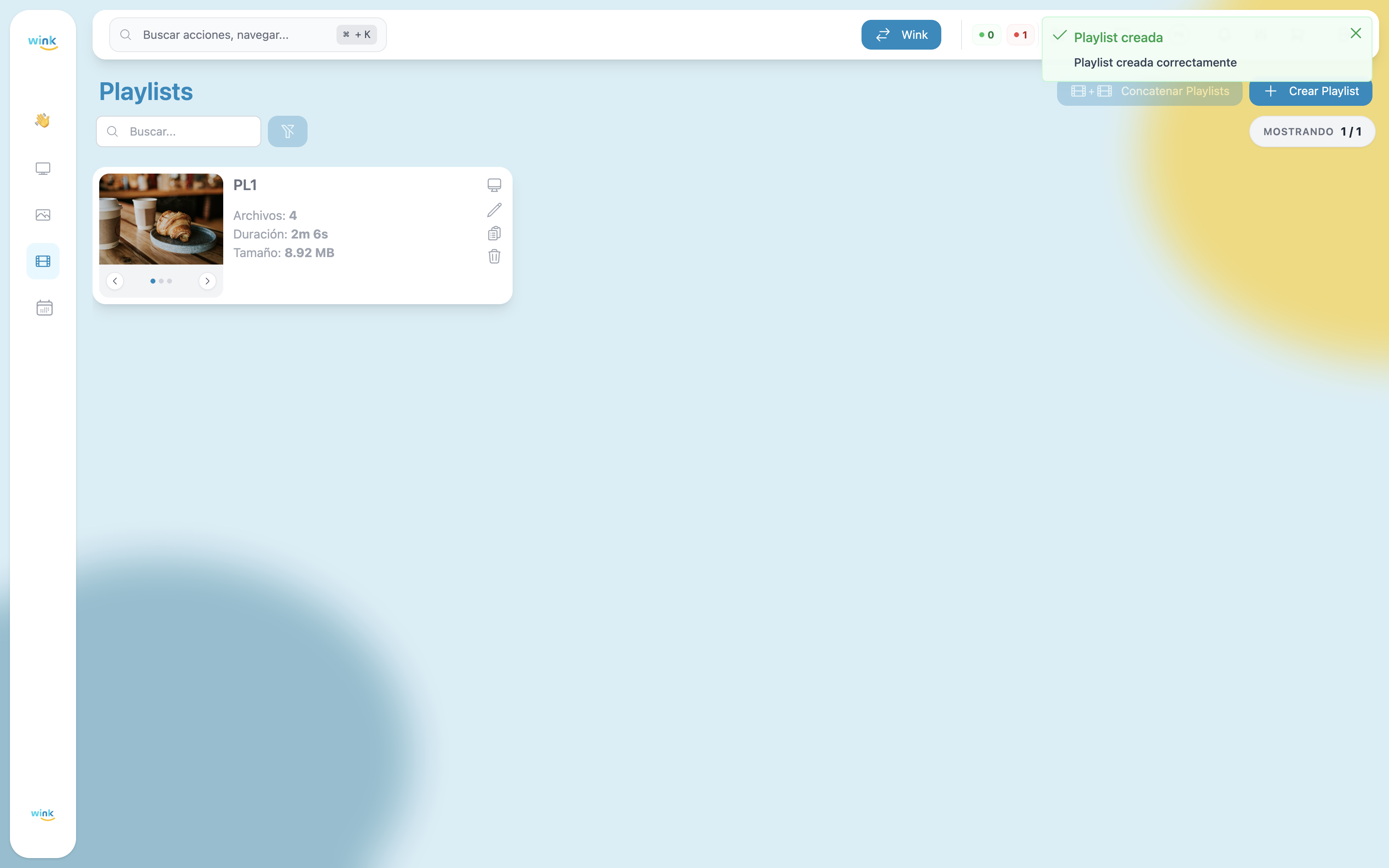
| Button | Tooltip | Action |
|---|---|---|
| Monitor icon | Assign Screens | Opens the player assignment modal. Shows a badge with the number of players currently assigned. |
| Pencil icon | Edit | Opens the playlist editor pre-loaded with the current content. |
| Copy icon | Duplicate | Creates an identical copy of the playlist. |
| Trash icon | Delete | Permanently removes the playlist. |
Assign Screens
Click the monitor icon to open the Screen Information modal. This lets you assign the playlist to one or more players so they begin playing it.
The modal shows a table of all your registered players with the following columns:
| Column | Description |
|---|---|
| Screen | Player name and connectivity indicator. |
| Status | Current device state. |
| Branch | Location or branch of the player. |
| Mode | Current content mode (Playlist or Layout). |
| Main Content | The playlist or layout currently assigned. |
| Schedules | Number of active schedules for this player. |
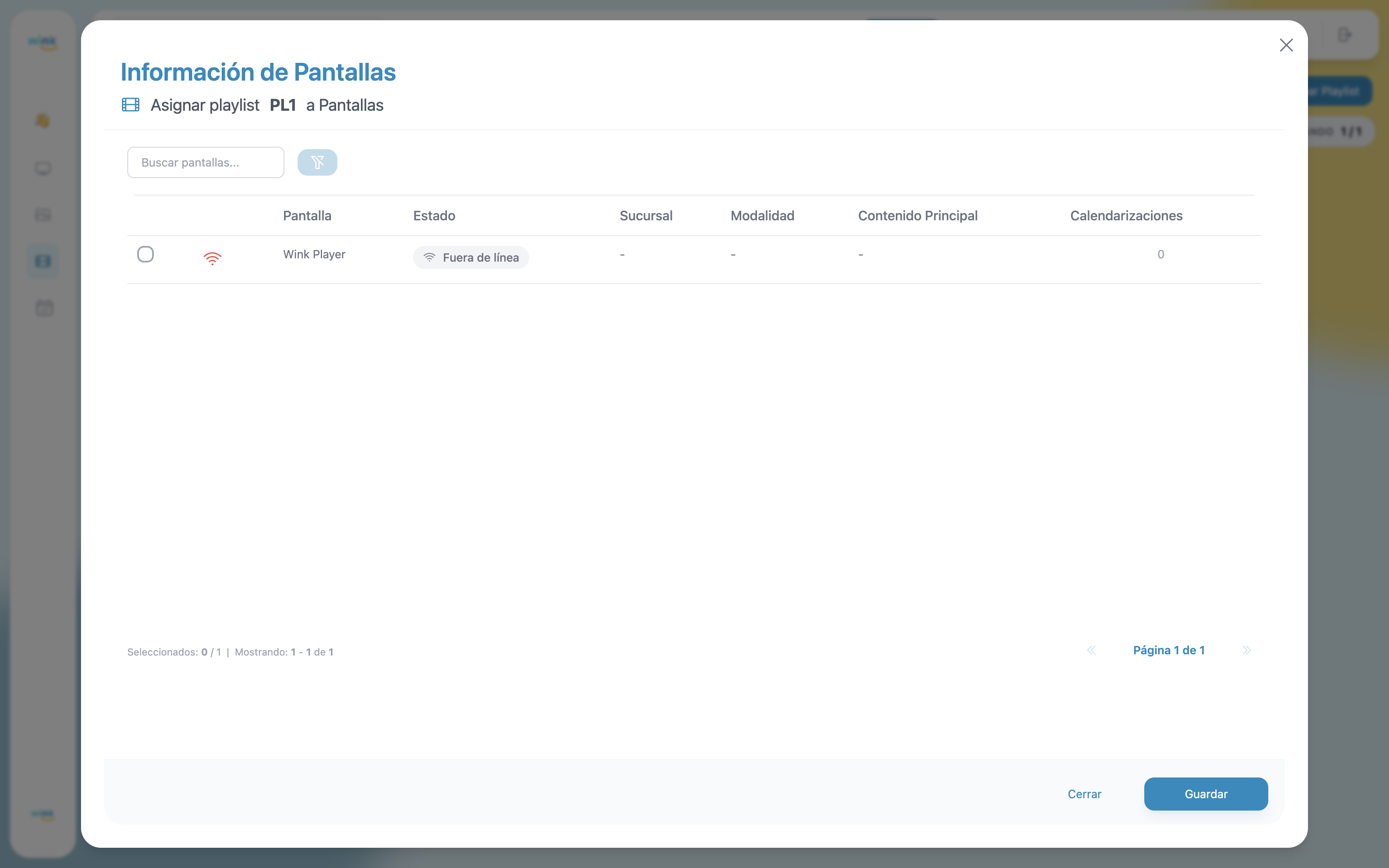
Check the box next to each player you want to assign. Selected rows highlight yellow and a "Unsaved changes" badge appears in the modal header. The counter at the bottom updates to show how many players are selected.
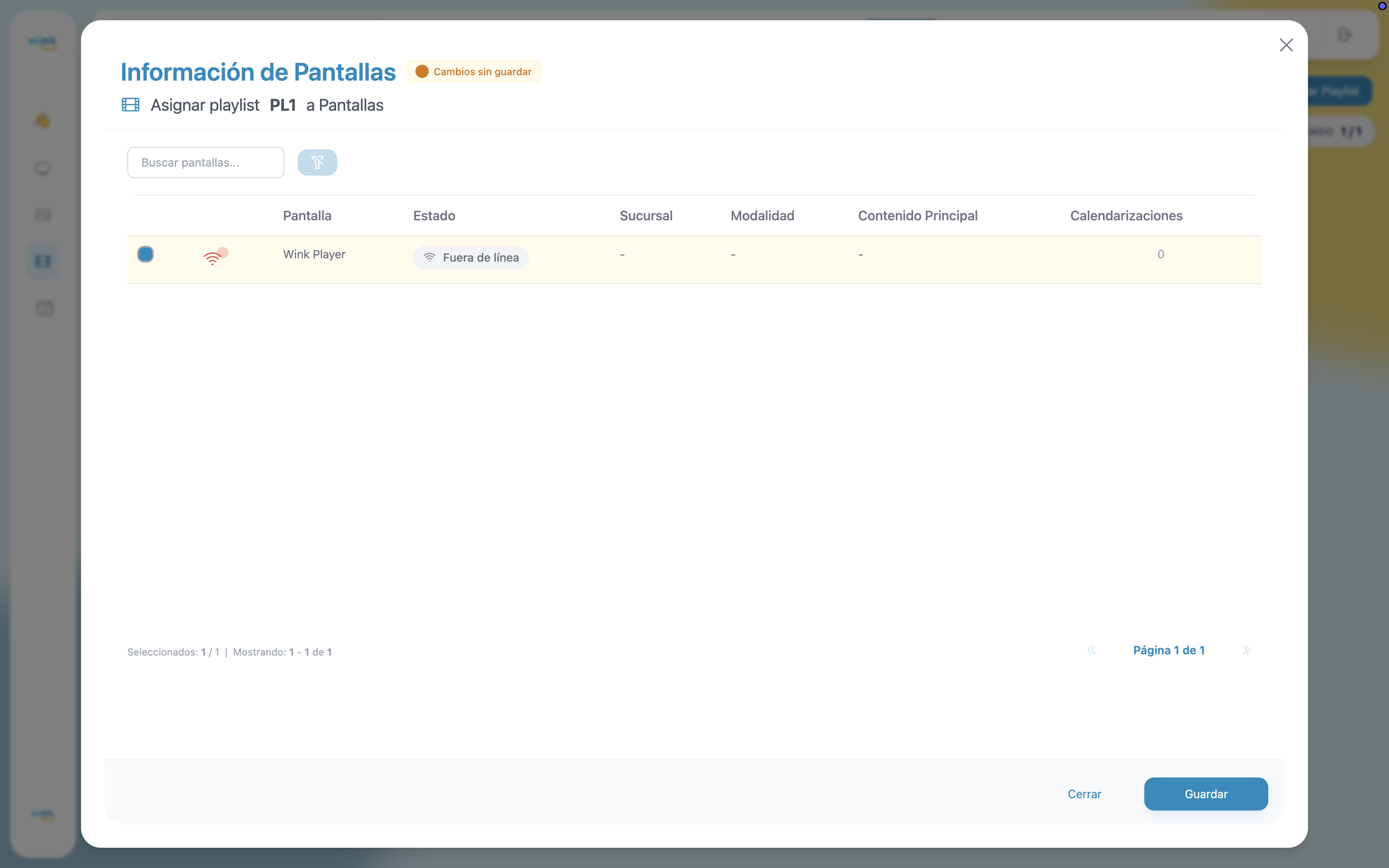
Click Save to proceed. A confirmation dialog appears summarizing the assignment:
"You are about to assign PL1 to 1 screen."
Click Confirm to apply.
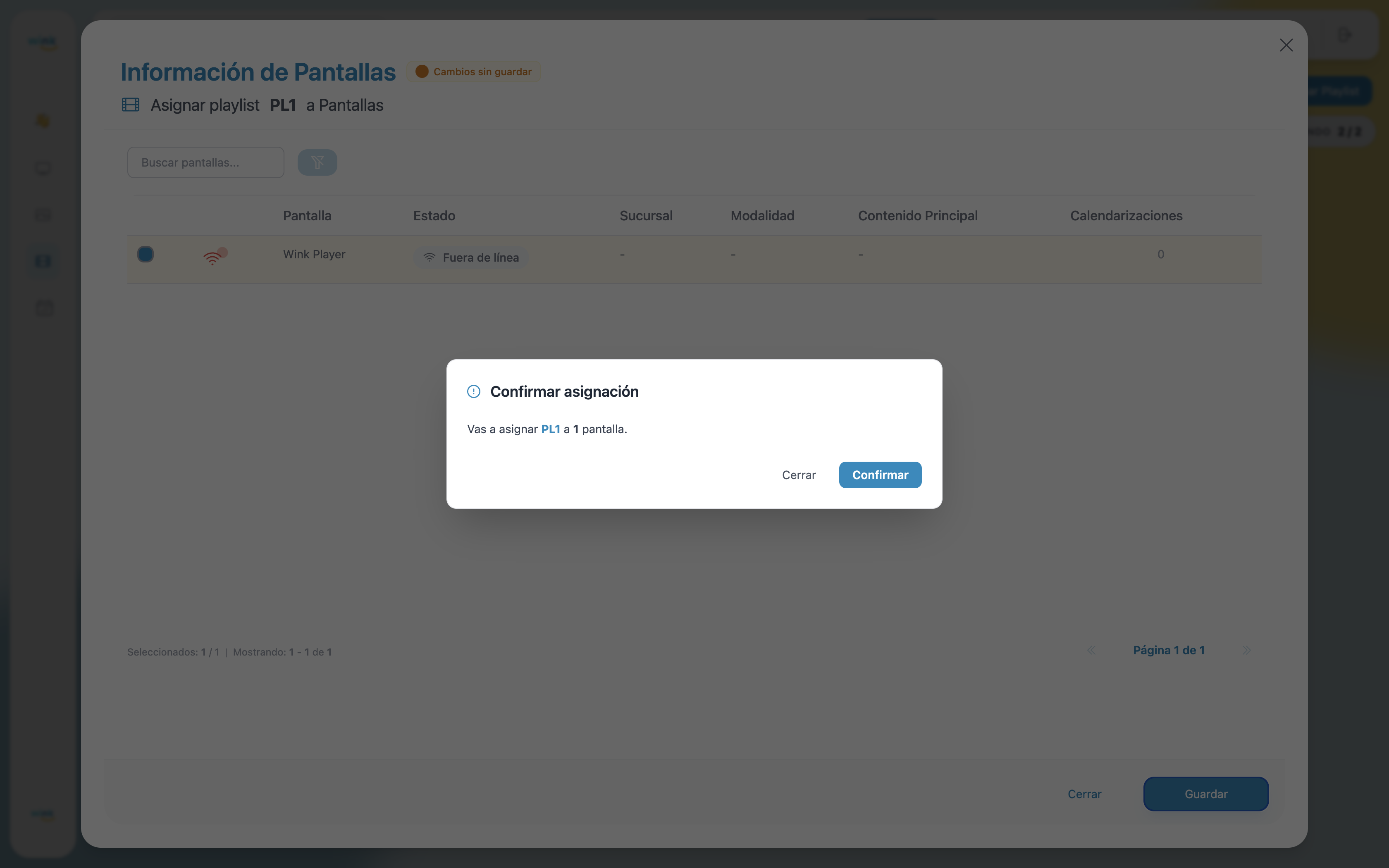
Once confirmed, the monitor icon on the playlist card shows a badge with the total number of players the playlist is assigned to.
Edit
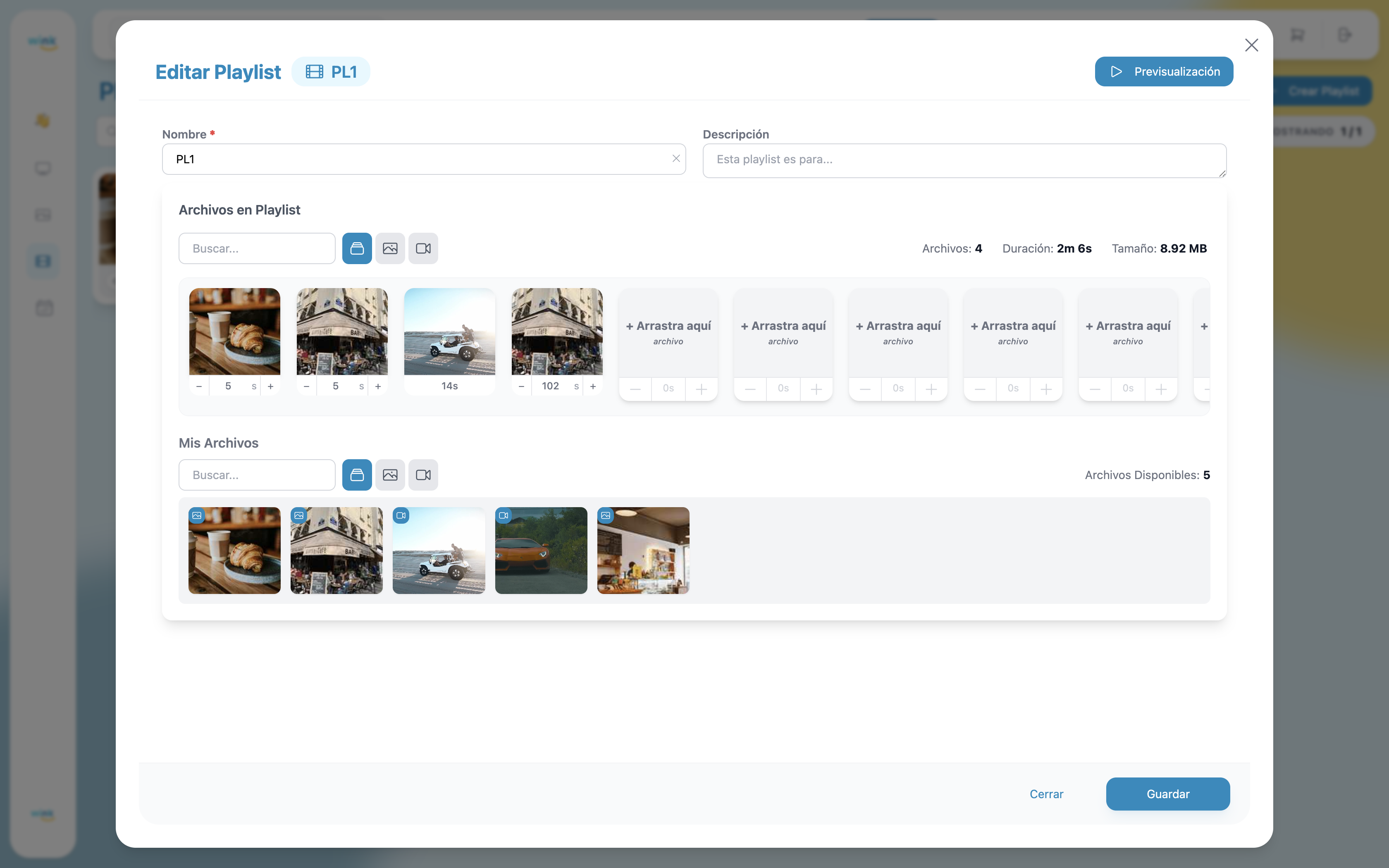
Click the pencil icon to open the playlist editor pre-loaded with all current files, durations, name, and description. The editor works exactly the same as when creating a playlist — you can add or remove files, adjust image durations, and rename the playlist.
Click Save to apply the changes.
Duplicate
Click the copy icon to duplicate the playlist. A confirmation dialog appears:
"Are you sure you want to duplicate this playlist?"
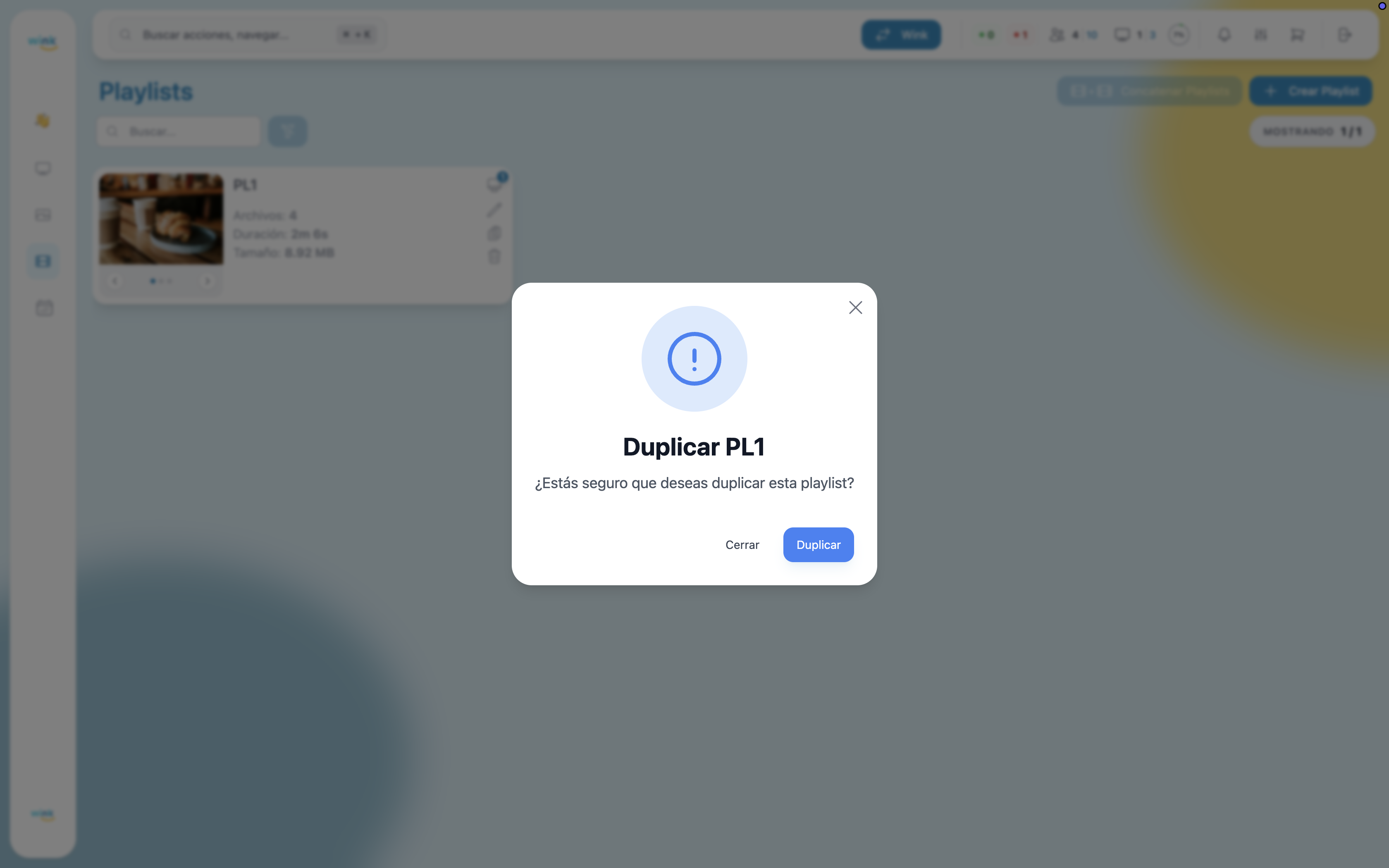
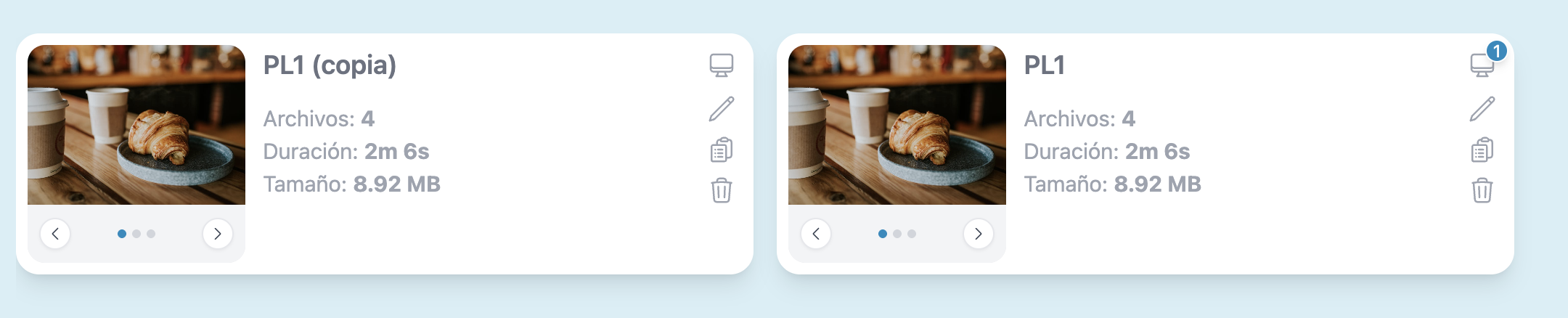
Click Duplicate to confirm. A new playlist appears with the same files and durations, named "[Original name] (copy)". The duplicate starts with no player assignments.
Delete
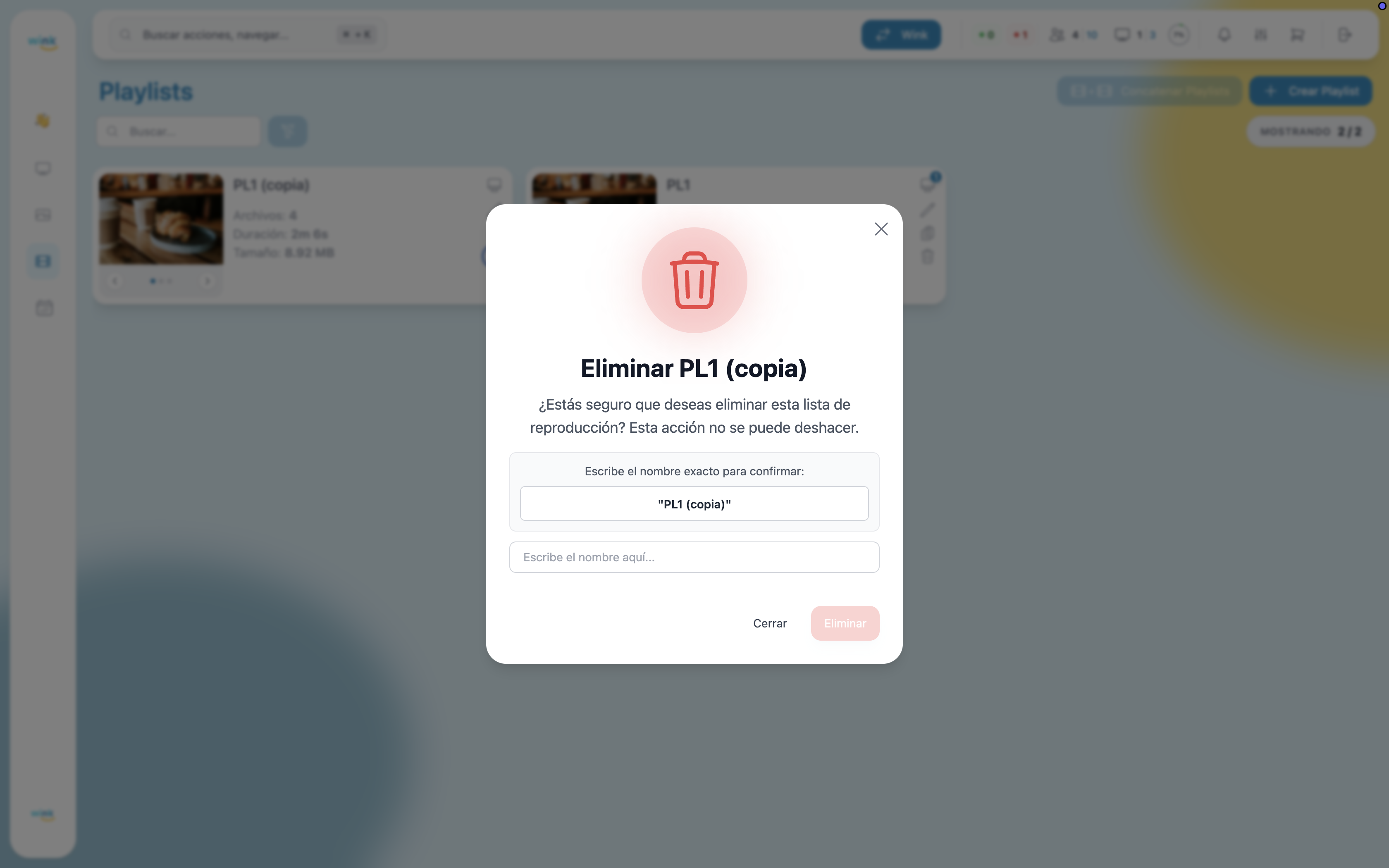
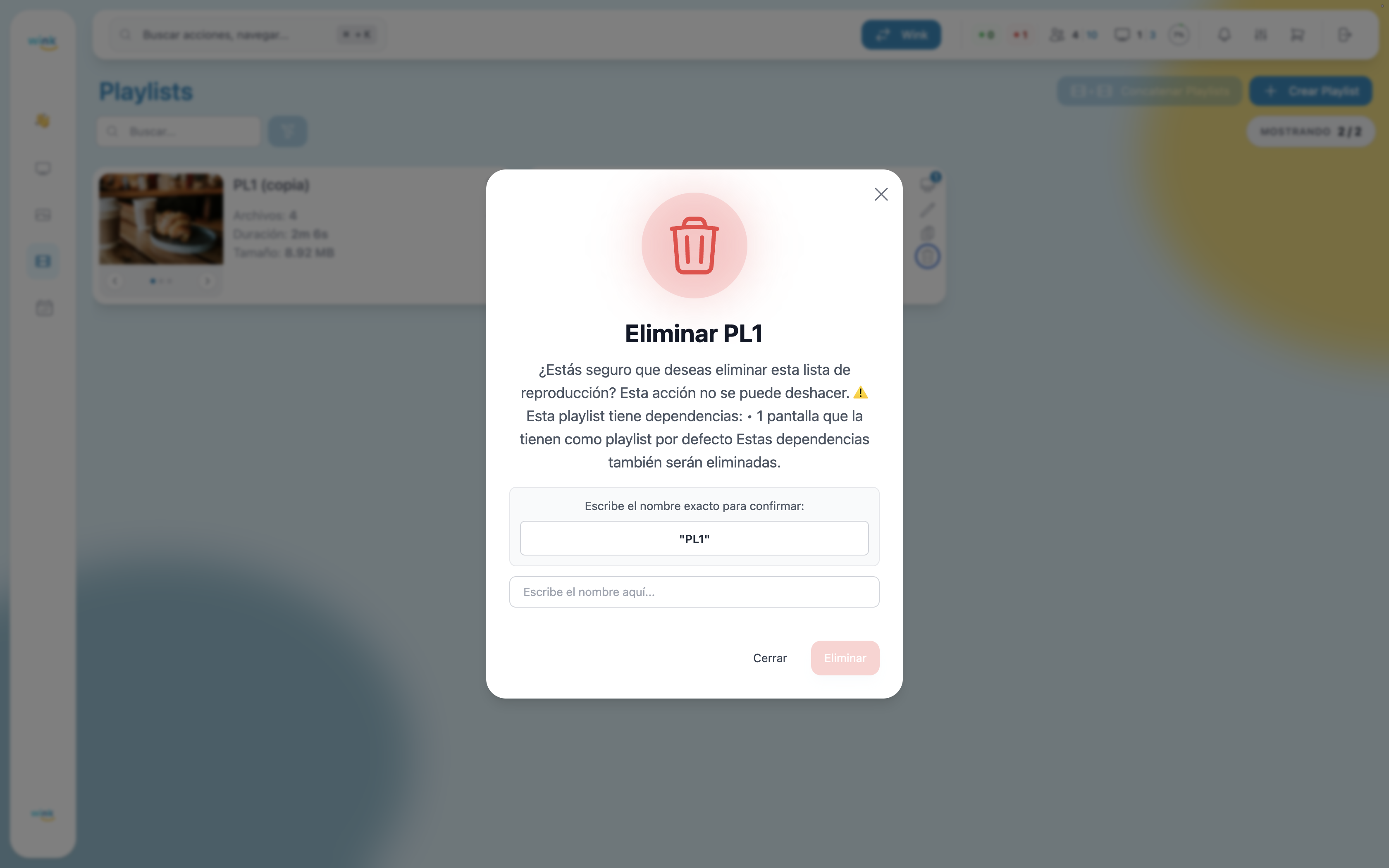
Click the trash icon to delete the playlist. A confirmation modal appears requiring you to type the exact playlist name before the Delete button becomes active.
Playlist with no player assignments
The modal shows a standard warning that the action cannot be undone.
Playlist assigned to players
If the playlist is currently assigned to one or more players, the modal shows an additional warning listing those dependencies:
"This playlist has dependencies: • X screen(s) that have it as their default playlist. These dependencies will also be removed."
Deleting the playlist will unassign it from all those players.
This action cannot be undone
Deleting a playlist removes it permanently, including all player assignments. The files themselves are not deleted — they remain in your library.