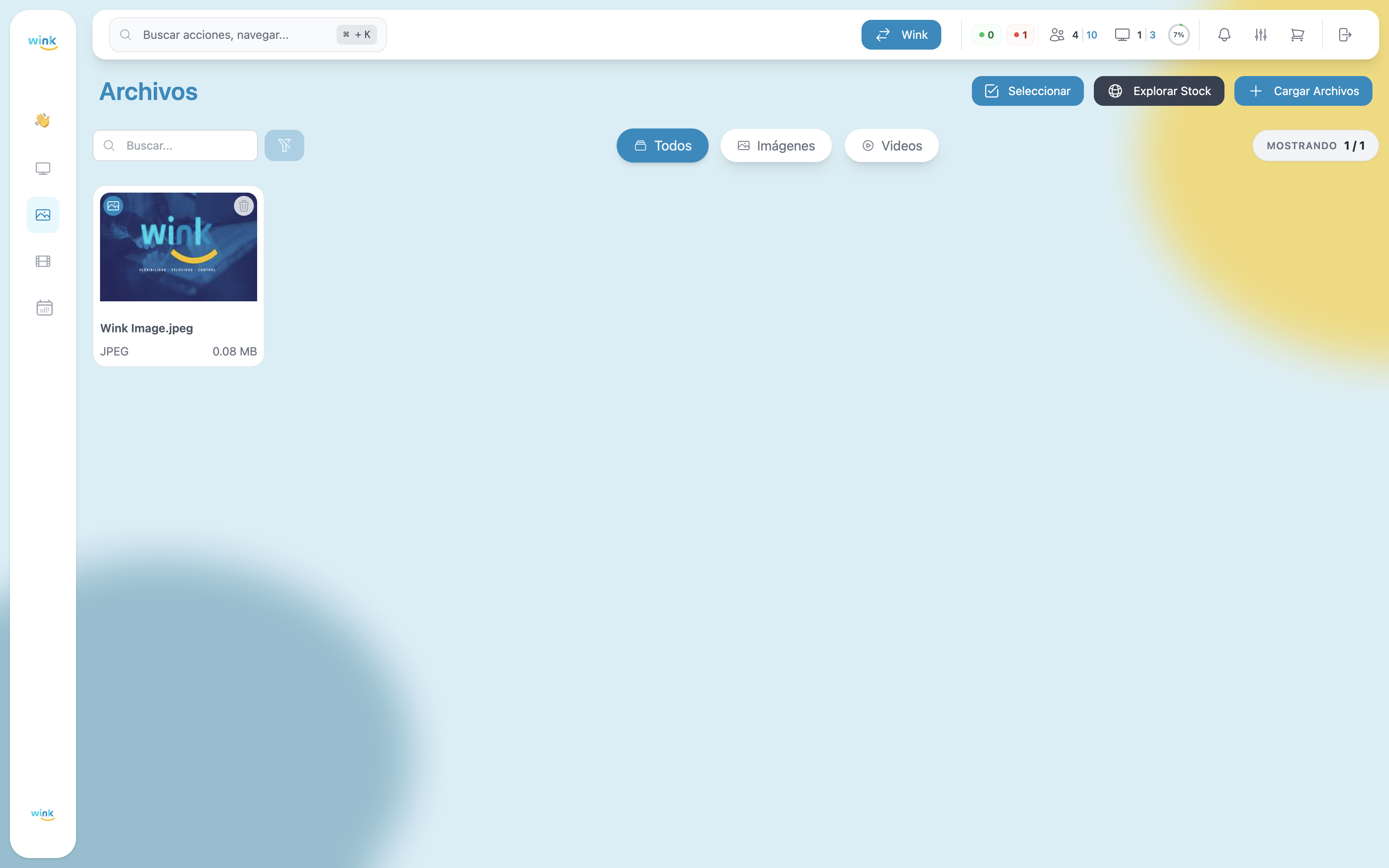
Upload Files
The file library is the central repository where all the images and videos displayed on your screens are stored. Before creating playlists or scheduling content, you need to upload your files to this section.
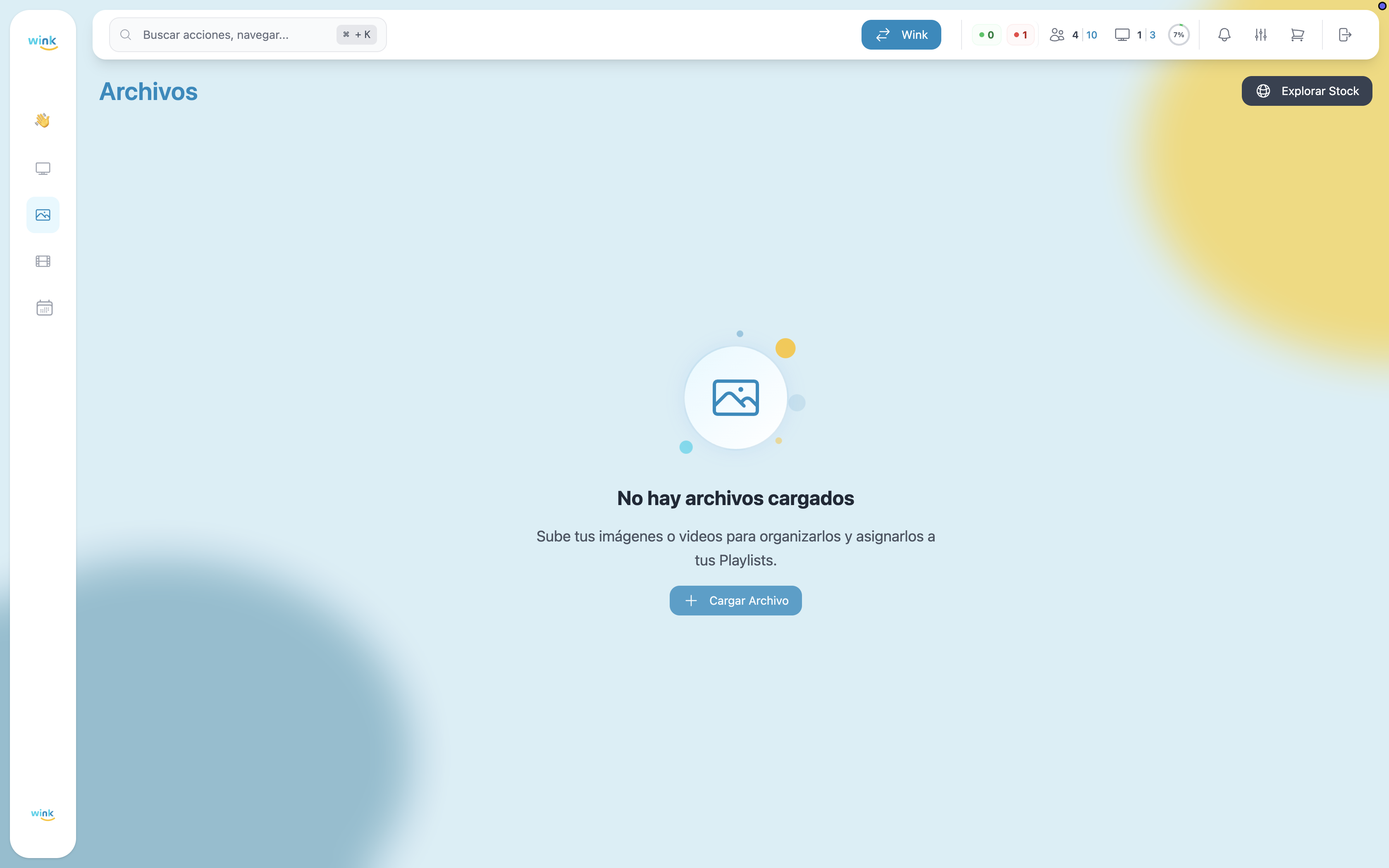
Accessing the File Upload
- In the sidebar, click Files.
- In the top-right corner, click the Upload Files button (the
+icon). - The upload modal will open.
If you have no files yet, a Upload File button also appears in the center of the empty state.
The Upload Modal
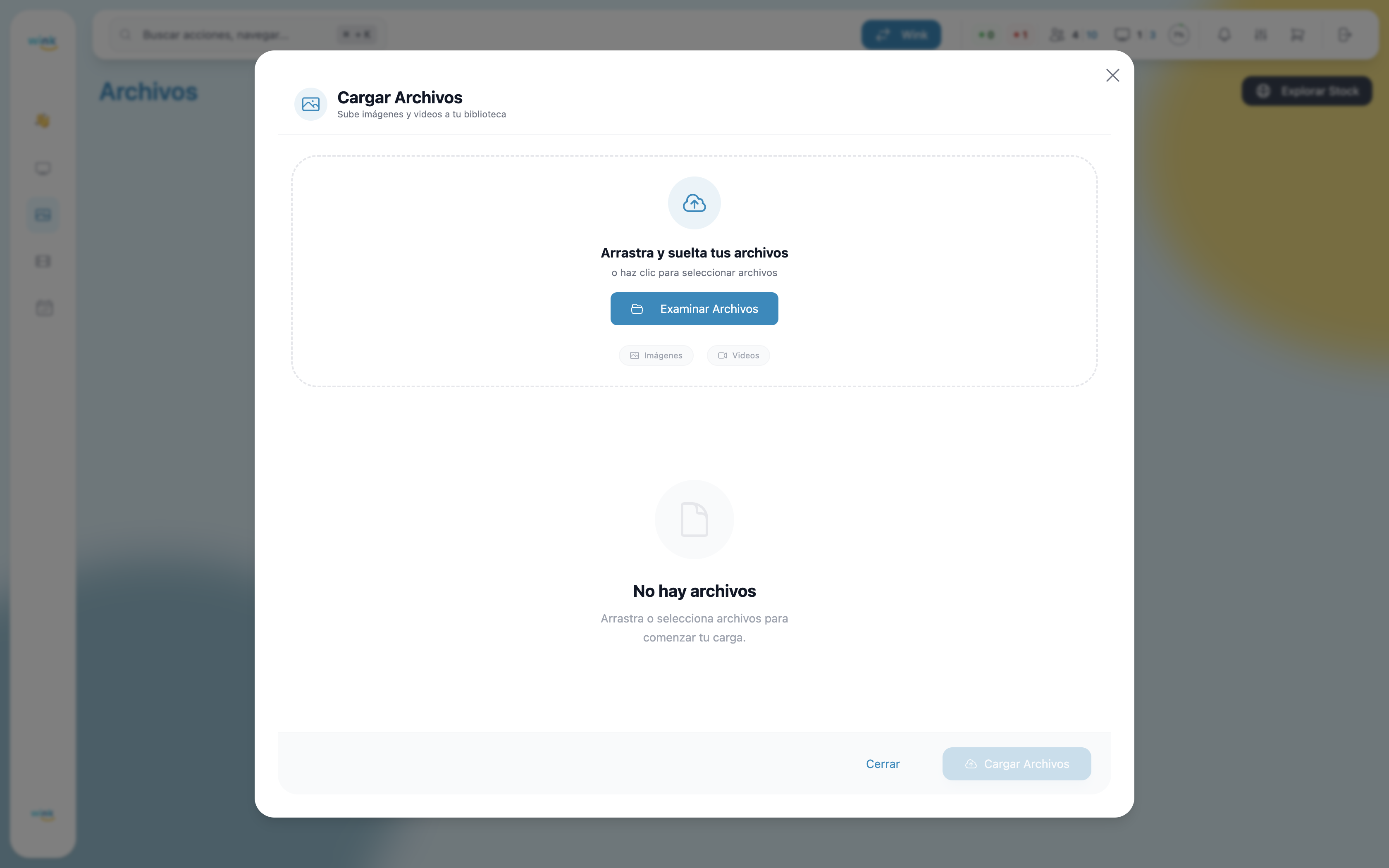
Drag & Drop Zone
When the modal opens, you'll see the main upload area. You can use it in two ways:
- Drag files from your computer directly onto the dashed zone.
- Click on the zone to open your system's file browser.
When you drag files over the zone, it changes visually — the border turns blue and the background highlights — indicating you can drop the files.
Supported File Types
Wink App accepts the following formats:
Images
| Format | Extension |
|---|---|
| JPEG / JPG | .jpg, .jpeg |
| PNG | .png |
| WebP | .webp |
Videos
| Format | Extension |
|---|---|
| MP4 / MOV | .mp4, .mov |
| AVI | .avi |
| MKV | .mkv |
Unsupported format
GIF files are not supported. If you try to upload a GIF, the system will automatically reject it.
Security validation
Wink App verifies that the actual file content matches its declared extension. If you try to rename a file to bypass validation, the system will detect it and reject it with the message:
"File rejected: The content does not match the file type."
Selected Files
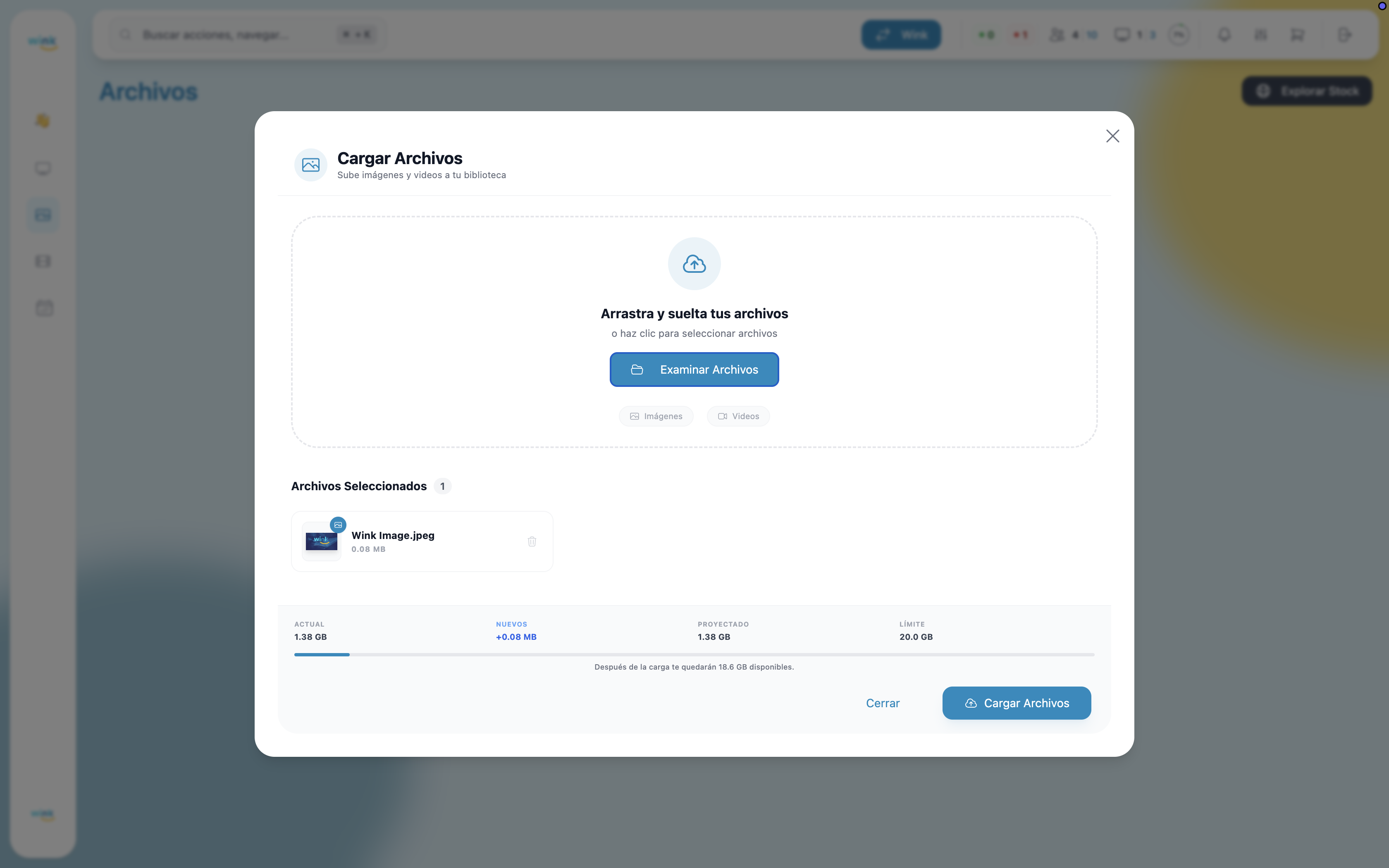
Once you select or drag files, they appear in a grid below the drop zone with the following information per file:
- Preview — Thumbnail of the image, or the first frame of the video.
- File name — Truncated if too long (hover to see the full name).
- Size — File size in MB.
- Type — Icon indicating whether it's an image or video.
- Delete button — Trash icon to remove the file from the selection before uploading.
Large videos
Videos larger than 100 MB will not generate a preview thumbnail in the modal, but they will upload correctly.
Storage Indicator
Before confirming the upload, the modal shows a summary of your storage usage with 4 values:
| Indicator | Description |
|---|---|
| Current | Storage space you are already using in your plan. |
| New | Total size of the files you are about to upload. |
| Projected | How much you will use in total after the upload. |
| Limit | Maximum storage capacity of your plan. |
A progress bar visualizes the projected usage percentage:
- Blue — Within the plan's limit.
- Red — The upload would exceed available storage.
Below the bar, a message shows how much space you'll have left after the upload, or how much additional space you need if you exceed the limit.
Not enough storage
If the projected storage exceeds your plan's limit, the "Upload Files" button will change to "Upgrade Plan" and redirect you to your account settings to expand your capacity.
Starting the Upload
Once you've reviewed the files and available storage, click Upload Files to start the process.
Progress Modal
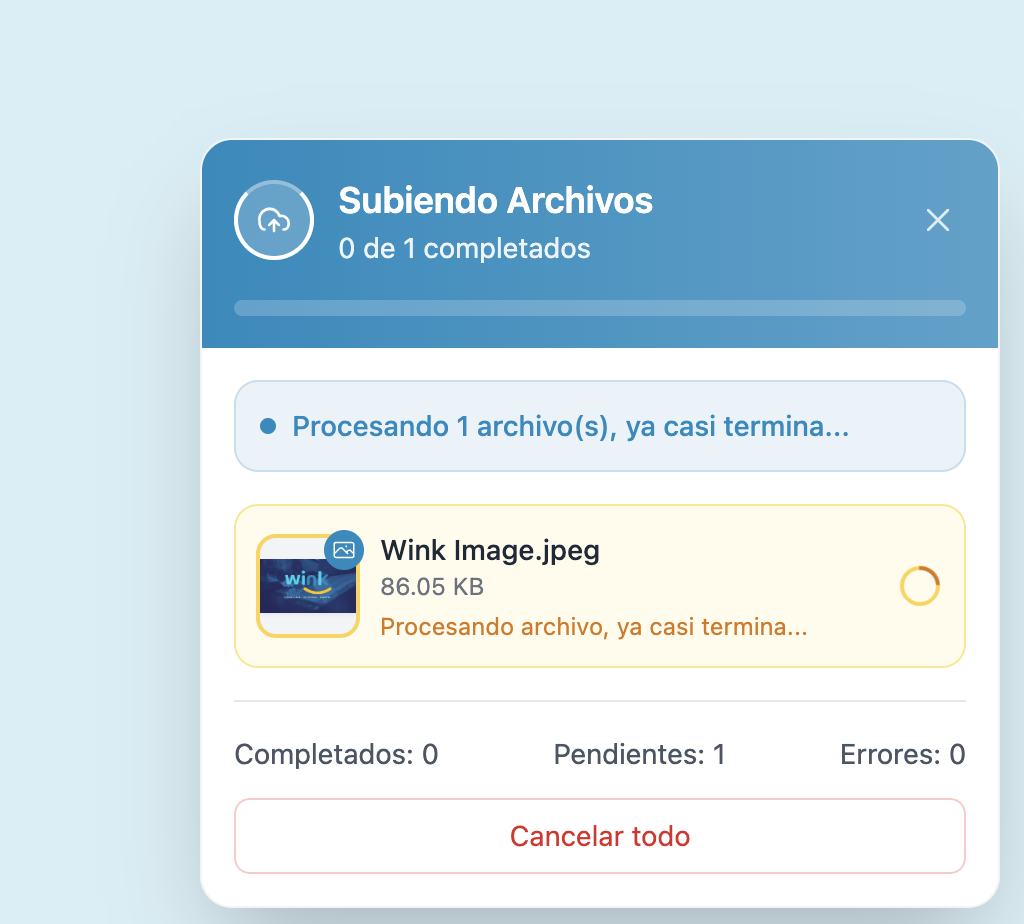
Once the upload begins, a progress modal appears in the bottom-right corner of the screen. This modal persists even if you close the main upload modal, allowing you to navigate to other sections while the upload completes.
Information Displayed
- Counter — "Uploading files X/Y" (completed vs. total).
- Progress bar — Overall upload progress.
- File list — Each file with its real-time status.
File Status States
| Status | Color | Description |
|---|---|---|
| Uploading | Blue | The file is being transferred. |
| Processing | Yellow | The file reached the server and is being processed. |
| Completed | Green | The file is available in your library. |
| Error | Red | A failure occurred during upload or processing. |
| Cancelled | Gray | The upload was manually cancelled. |
Cancelling an Upload
- Cancel a single file — Click the
✕icon next to the file during upload. - Cancel all — A button appears to cancel all pending uploads.
Final Result
When the upload finishes, a notification appears based on the outcome:
| Result | Notification |
|---|---|
| ✅ All successful | "Files uploaded successfully" |
| ⚠️ Partial upload | "X file(s) uploaded successfully, Y with errors" |
| ❌ All failed | "Could not upload X file(s)" |
Successfully uploaded files will appear immediately in your file library, ready to be used in playlists, apps, or layouts.