
Connect a Player to the Internet
The Wink Player needs an internet connection to receive content and stay in sync with Wink App. The connection process is designed to be simple — no keyboard or mouse needed.
How It Works
When the Wink Player starts without detecting an internet connection, it automatically creates its own Wi-Fi hotspot. You connect to that hotspot from your phone, which opens a portal where you select your Wi-Fi network and enter the password. The player then connects and the hotspot disappears.
Step-by-Step
Step 1 — Find the hotspot credentials
When the Wink Player has no internet, it shows a screen with a QR code. That QR contains everything needed to connect to its hotspot.
Already registered?
If the player is already linked to your account, you can also find the credentials in Wink App: go to Monitoring, open the player's details, and the hotspot name and password appear there as text and as a QR code.
Step 2 — Connect your phone to the hotspot
Option A — Scan the QR (recommended)
- Open your phone's camera app (no need to open a QR scanner app — the native camera works).
- Point it at the QR code shown on the player's screen.
- A notification will appear — tap it to connect to the hotspot automatically.
Option B — Connect manually
- On your phone, go to Settings → Wi-Fi.
- Look for a network named something like
Wink-XXXXXX. - Enter the password shown on the player's screen (below the QR code).
- Connect.
Step 3 — Set up Wi-Fi from the captive portal
Once your phone connects to the Wink Player's hotspot, a captive portal opens automatically — a setup wizard that walks you through connecting the player to your network.
Portal didn't open automatically?
If the captive portal doesn't appear on its own, open your phone's browser and navigate to any http:// website (not https://). The portal should load.
The portal has four screens:
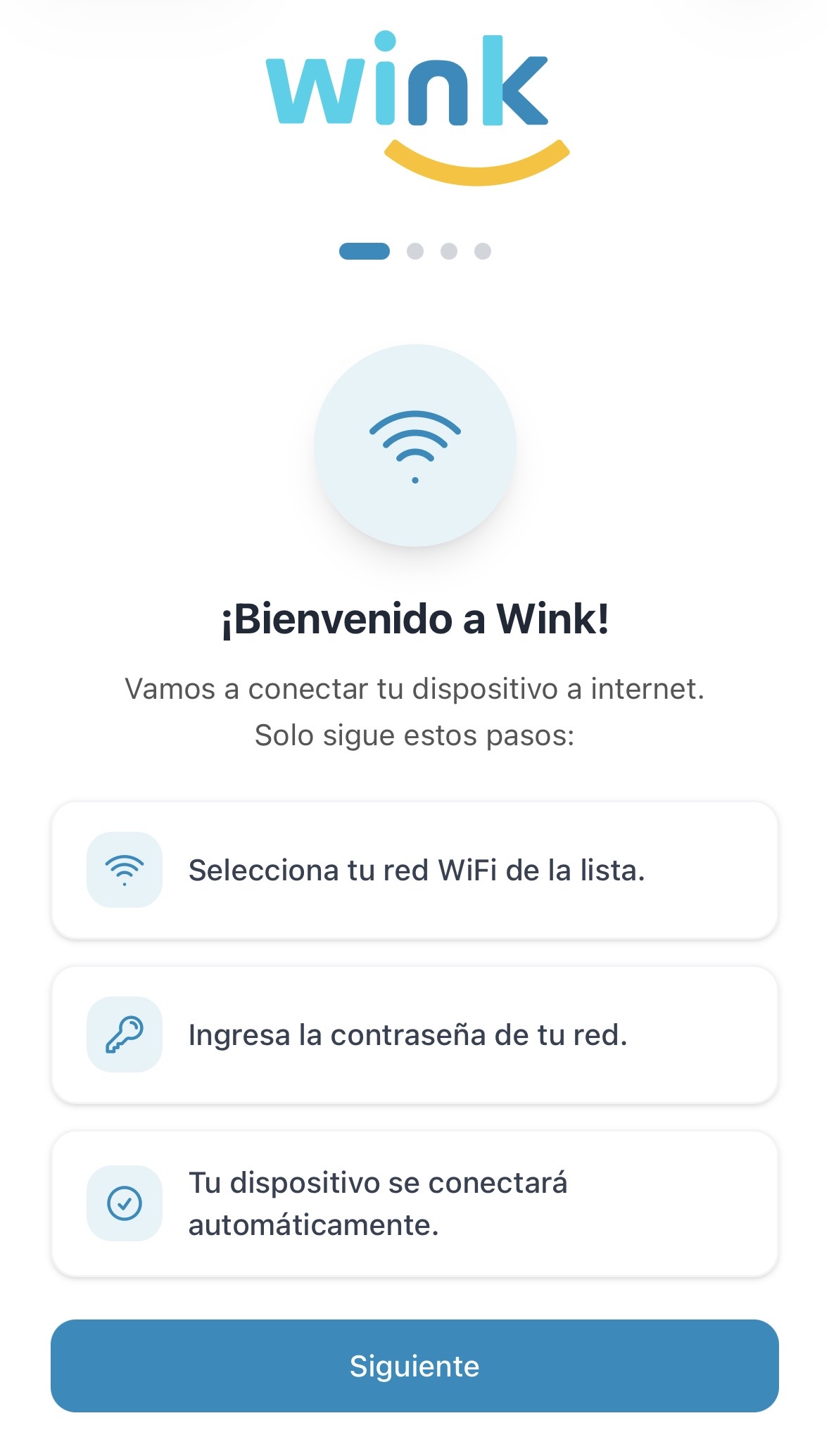
Welcome screen
An introduction explaining what will happen. Tap Next to continue.
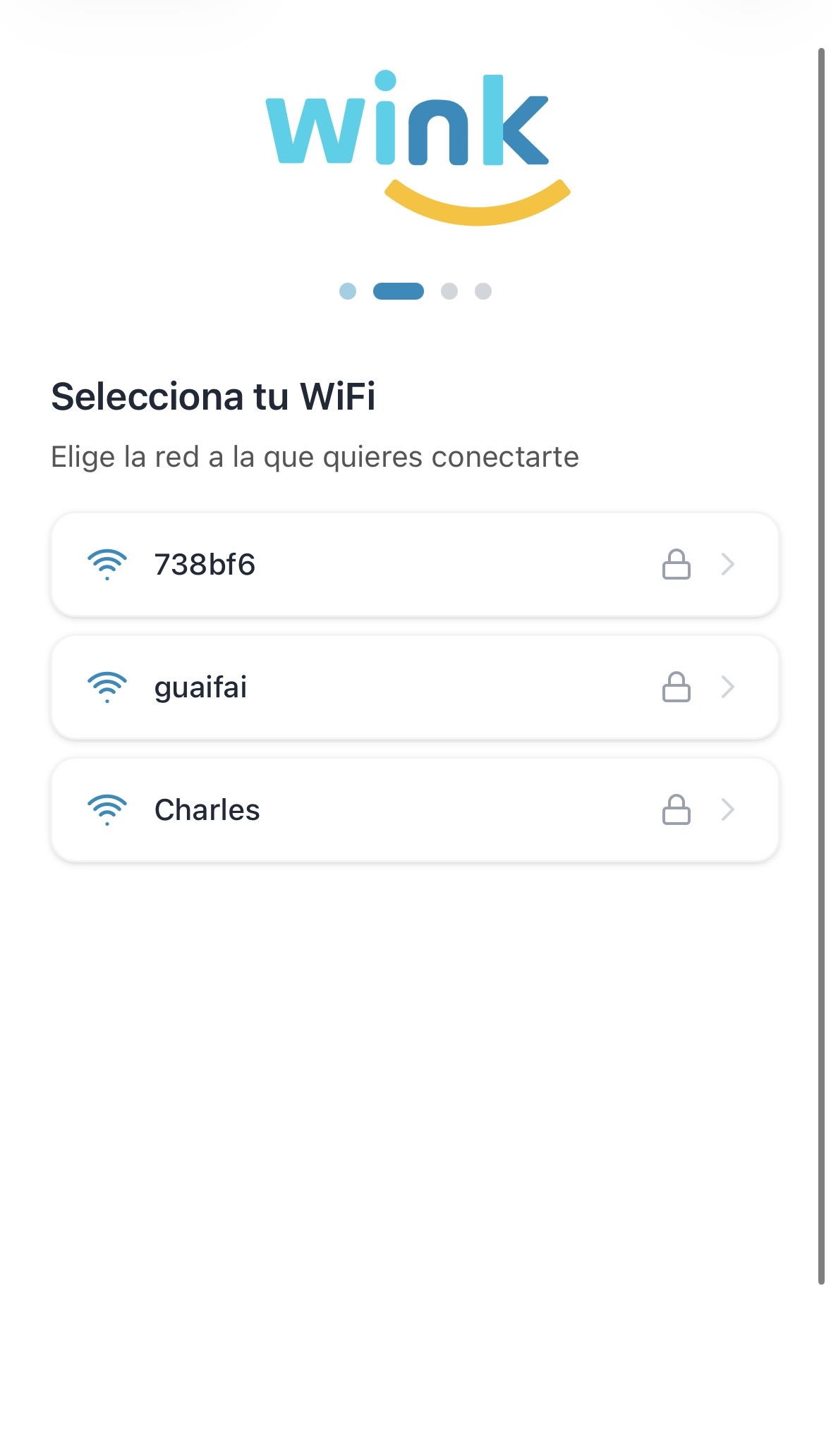
Select your Wi-Fi
A list of nearby Wi-Fi networks detected by the player. Tap the network you want to connect to.
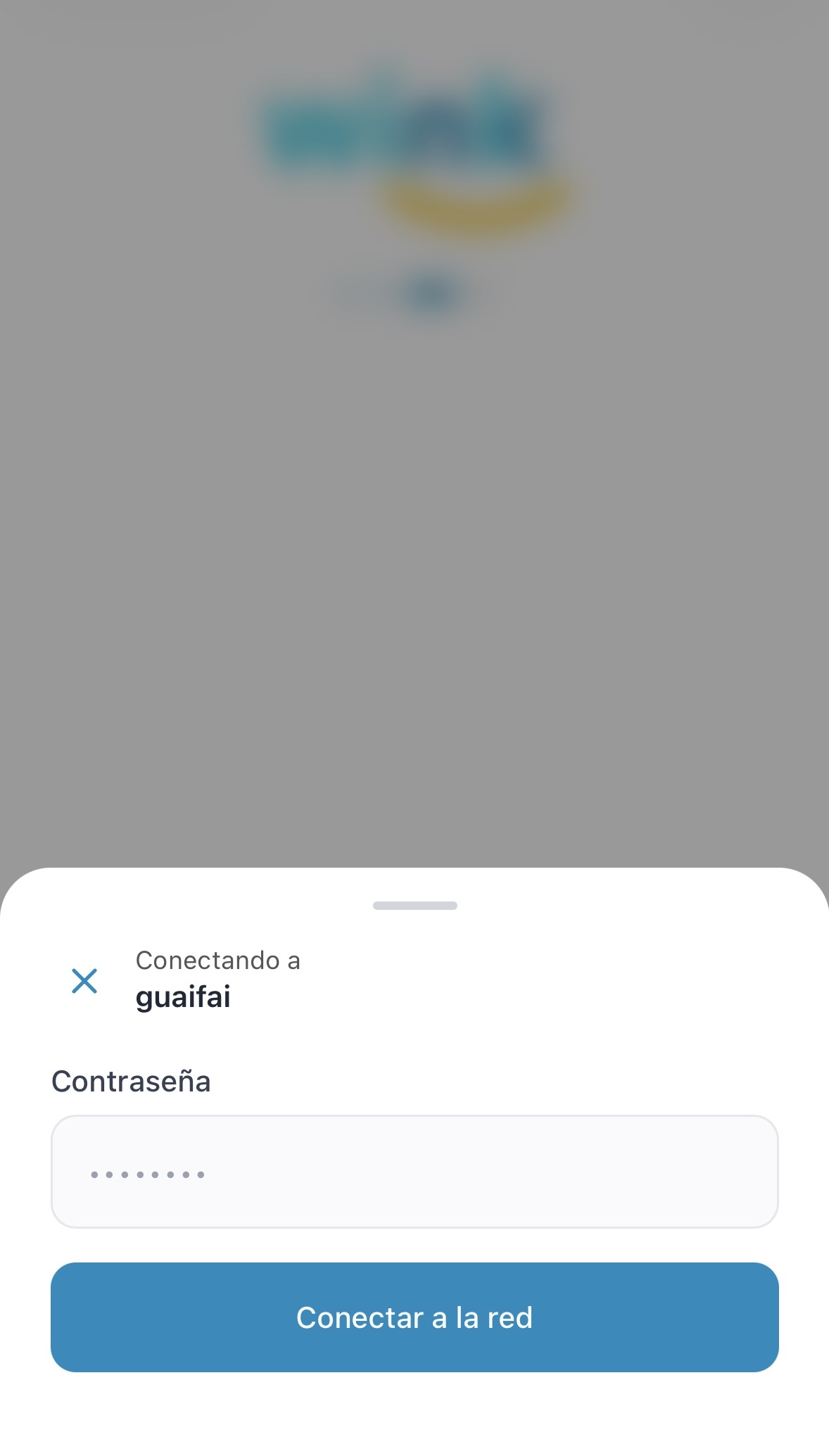
Enter the password
A panel slides up showing the network name and a password field. Enter the Wi-Fi password and tap Connect to network.
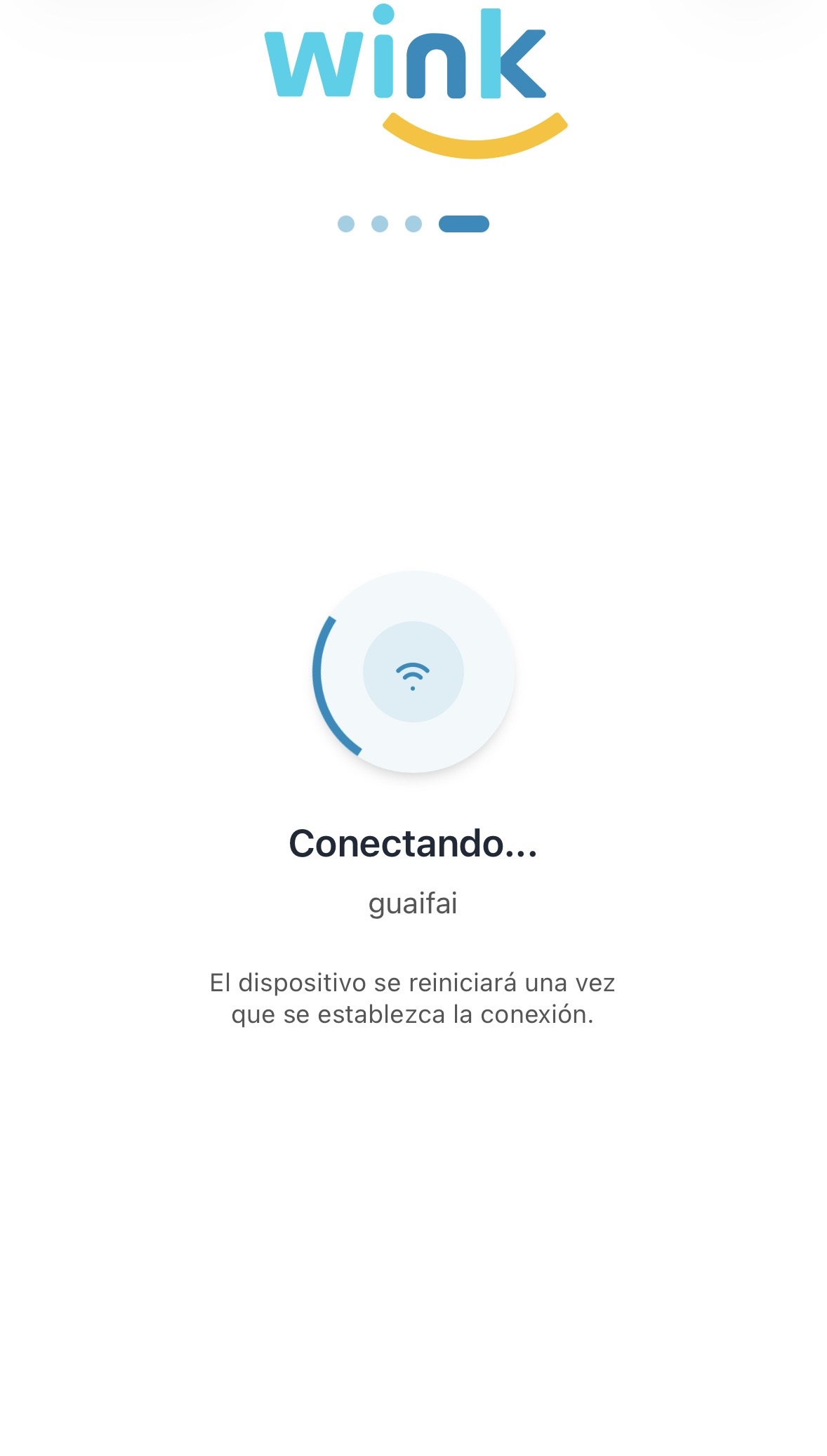
Connecting…
The portal shows a spinner with the network name and the message: "The device will restart once the connection is established."
Step 4 — Confirm the connection
The Wink Player automatically restarts once it connects to your network. After rebooting it will:
- Close its hotspot.
- Show a screen indicating it is online and ready.
- If already registered, begin syncing and playing assigned content.
Your phone will disconnect from the hotspot automatically — reconnect it to your regular Wi-Fi.
Using Ethernet Instead
For permanent installations, connecting the Wink Player via Ethernet cable is the most reliable option. No setup is required — just plug in the cable and the player connects automatically.