Player Status & Monitoring
Wink App lets you see the state of every player in real time — both from the general list and by opening its monitoring panel for deeper detail.
The Players List
Connectivity Indicator
Every player in the list shows an icon that changes color depending on its connection state:
| Icon | Meaning |
|---|---|
| Online | The player is connected and communicating with Wink App. |
| Offline | The player has lost its internet connection. |
| Searching… | The player is starting up or establishing its connection. |
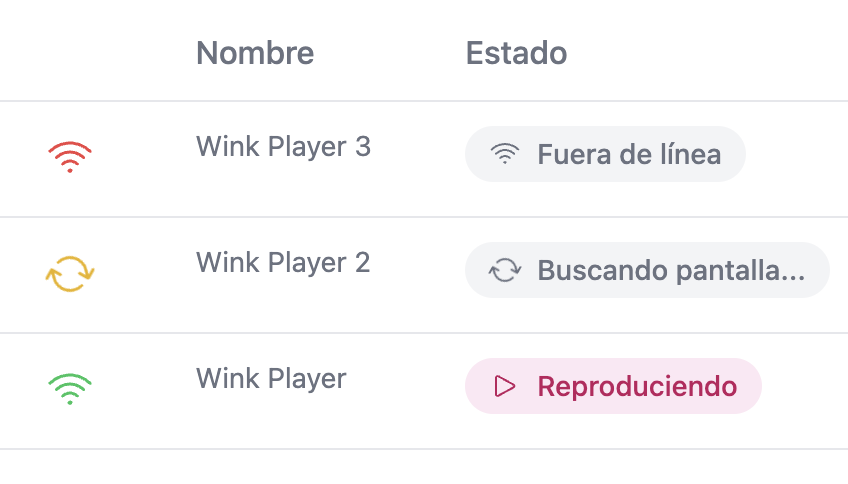
Table Columns
| Column | Description |
|---|---|
| Name | The name assigned to the player during registration. |
| Status | The player's current operating state (see below). |
| Branch | The location or branch where the player is installed, if your organization uses branch assignments. |
| Mode | The type of content currently assigned: Playlist or Layout. |
| Content | The name of the playlist or layout assigned to this player. |
| Schedules | Number of active schedules configured for this player. |
| Created | Date and time the player was registered in Wink App. |

Device States
Each player displays a colored badge indicating what it is currently doing.
Normal operation
| Badge | Description |
|---|---|
| ✓ Configured | The player is set up, online, and ready. |
| ▷ Playing | The player is actively reproducing content. |
| ⬇ Downloading | The player is downloading new content assigned to it. |
In progress (icon animates while active)
| Badge | Description |
|---|---|
| ↻ Updating | The player is applying a data or software update. |
| ↻ Restarting | The player is in the middle of a reboot. |
| ↻ Refreshing | The player is reloading without a full hardware restart. |
| ⚙ Checking registration | The player is verifying its link to your account on startup. |
| ⚙ In maintenance | The player is undergoing a maintenance process. |
| ↻ Forgetting networks | The player is rebooting and erasing all saved Wi-Fi networks. |
Power states
| Badge | Description |
|---|---|
| ☽ Idle | The physical screen is in sleep/rest mode. |
| ↻ Turning on | The screen is waking up from idle. |
| ↻ Turning off | The screen is shutting down or entering idle. |
| ✕ Shutting down | The device is in the process of a full shutdown. |
| ⏻ Off | The player is completely powered off. |
Issues
| Badge | Description |
|---|---|
| ✕ Error | A failure occurred on the device. Check the monitoring panel for details. |
| ✕ Warning | The player has detected an anomaly but is still running. |
| ≋ Offline | The player has no internet connection and cannot receive updates. |
| ✕ Not configured | The player is online but has not completed its setup. |
Other
| Badge | Description |
|---|---|
| ⏱ Pending | An action has been sent to the player and is waiting to be executed. |
| ⚗ Diagnosing | The player is running an internal diagnostic. |
The Monitoring Panel
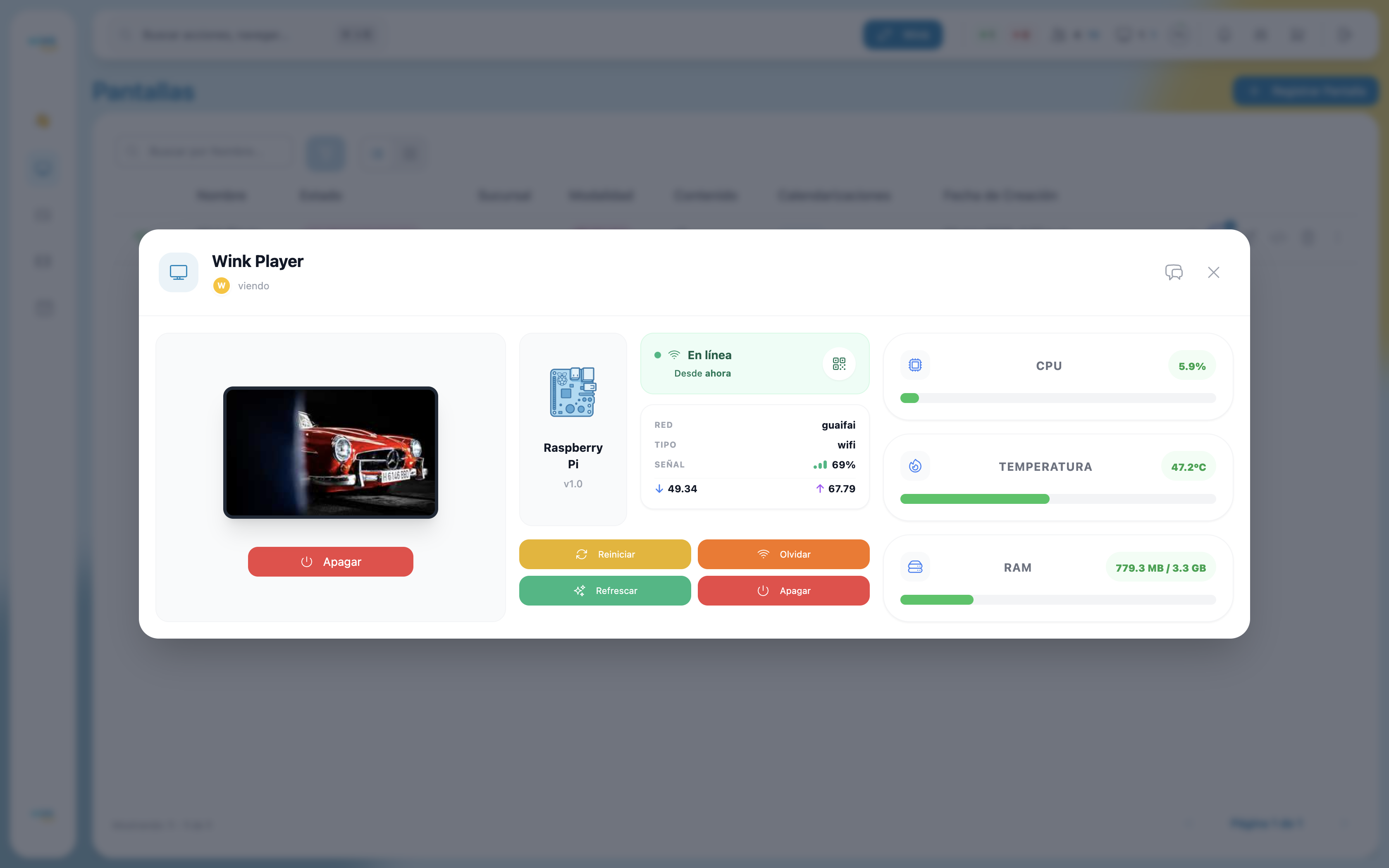
For real-time detail on any individual player, open its monitoring panel by clicking the eye icon on its row (list view) or card (card view).
Content Preview
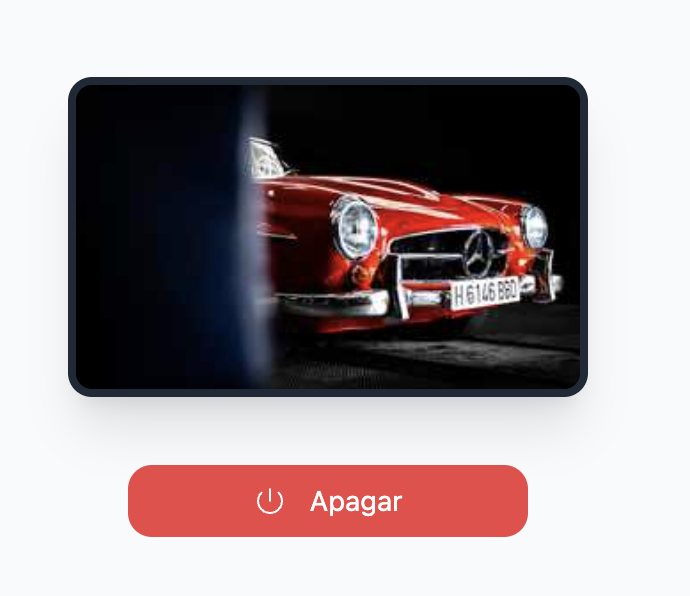
The left section shows a live thumbnail of what the player is currently displaying on screen.
The preview changes appearance depending on the player's current state:
| State | Preview |
|---|---|
| Playing | Live thumbnail of the content being displayed. |
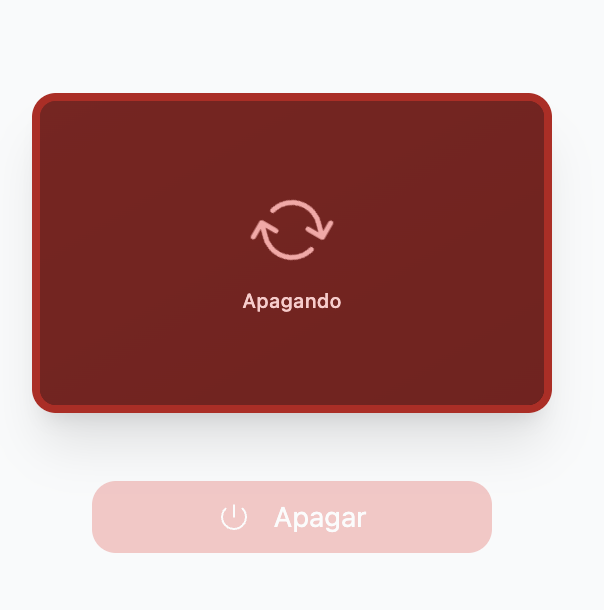
| Shutting down | Dark red background with a spinning icon and the label "Turning off". |
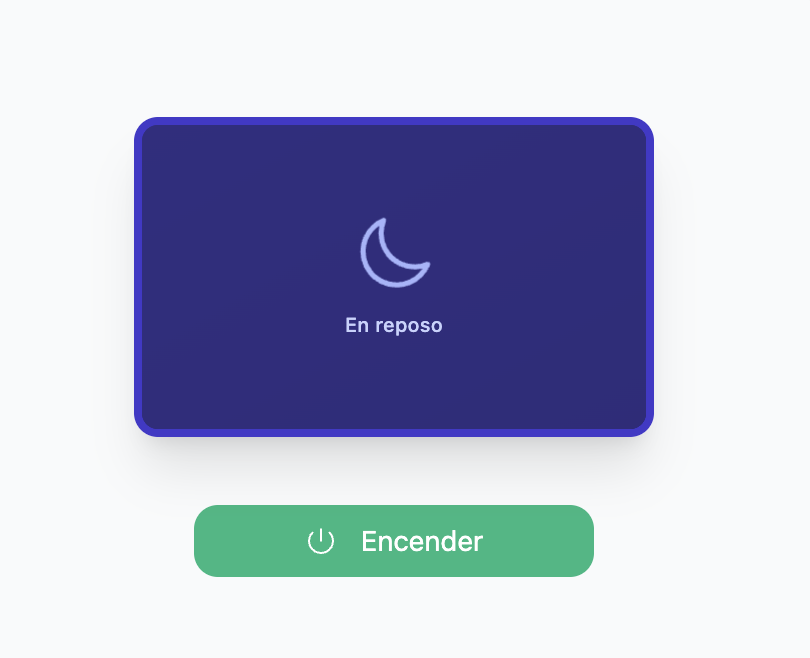
| Idle | Dark blue background with a moon icon and the label "Idle". |
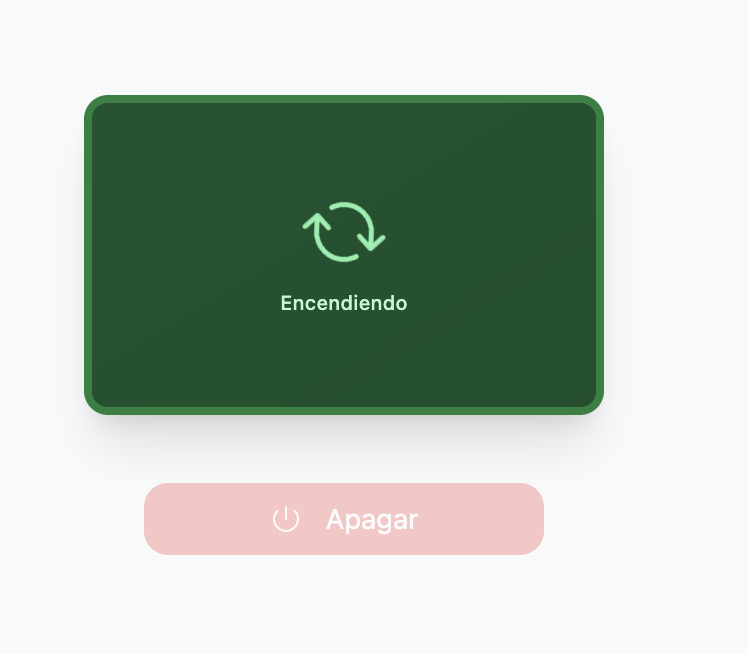
| Turning on | Dark green background with a spinning icon and the label "Turning on". |
Controlling the Physical Screen
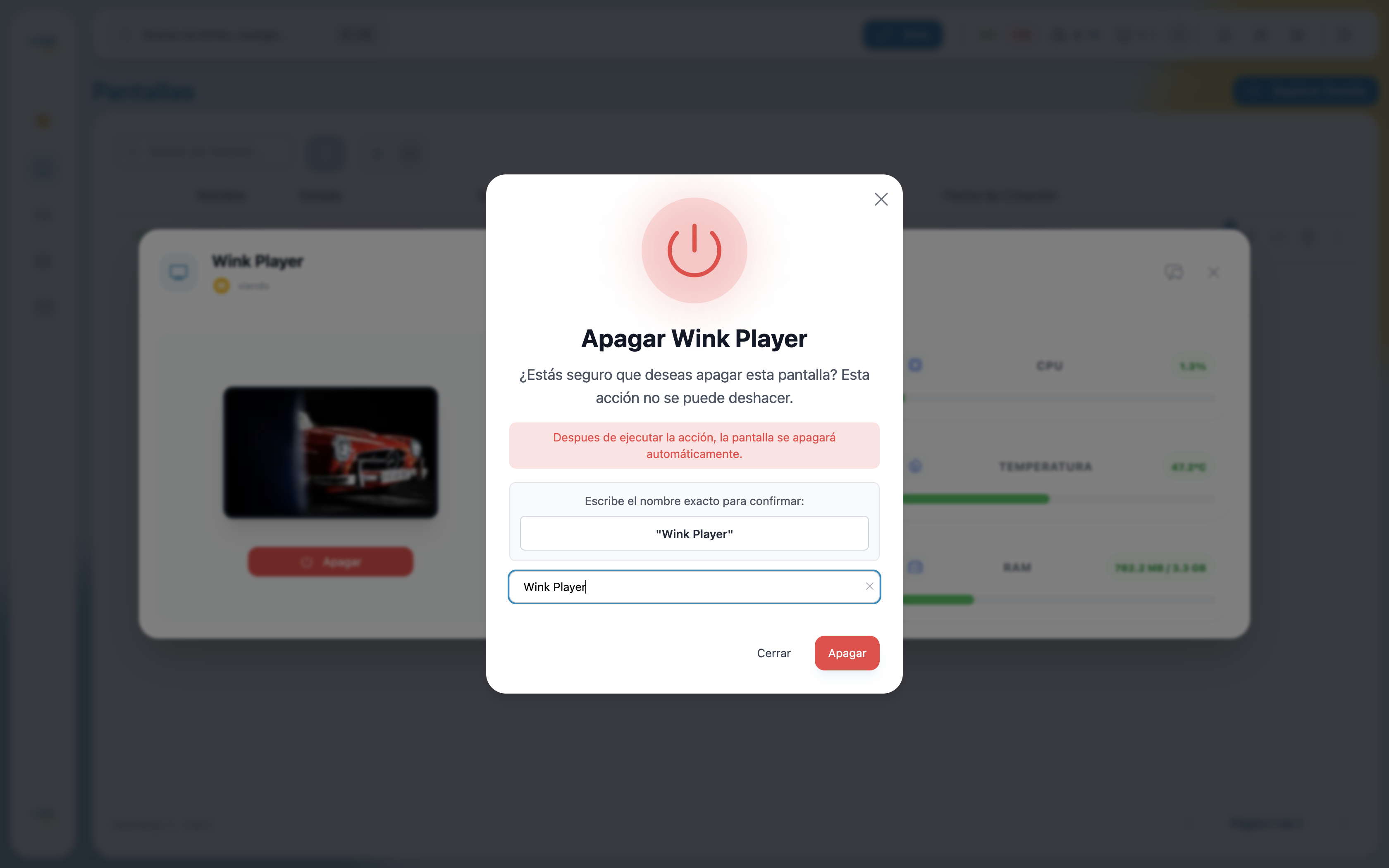
Below the preview, a dynamic button lets you turn the connected physical screen on or off — this is the monitor or TV attached to the Wink Player, not the player hardware itself.
| Button | When it appears | What it does |
|---|---|---|
| Turn Off (red) | Player is active | Sends a signal to turn off the physical screen. |
| Turn On (green) | Screen is idle/off | Wakes up the physical screen. |
| Disabled (faded) | Transitioning or offline | No action available while the state is changing or the player is offline. |
Turning off requires confirmation. When you click Turn Off, a modal appears asking you to type the player's exact name before proceeding. The modal also warns that the action cannot be undone and that the screen will shut off automatically once confirmed.
Hardware
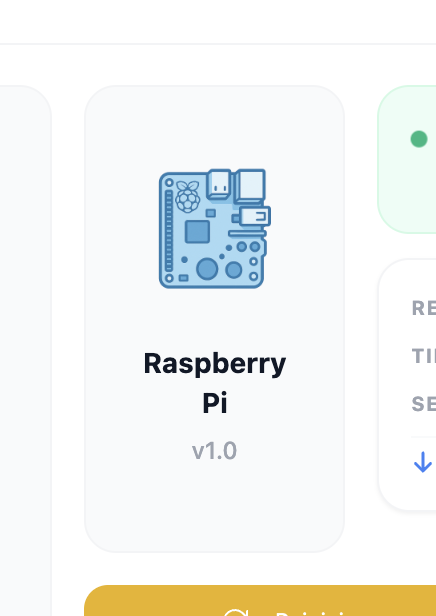
Shows the device model (Raspberry Pi or NUC) and its firmware version.
Connection
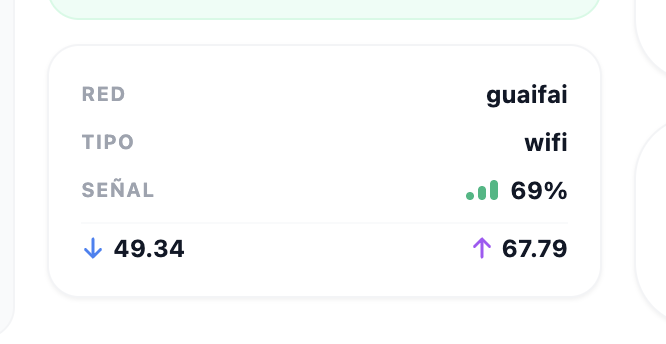
| Field | Description |
|---|---|
| Status | Online or Offline, with a pulsing indicator and time since last connection. |
| Network | Name of the Wi-Fi network (SSID) the player is connected to. |
| Type | Connection type: Wi-Fi or Ethernet. |
| Signal | Wi-Fi signal strength as a percentage. |
| Download / Upload | Current network speeds in Mbps. |
Wi-Fi Credentials
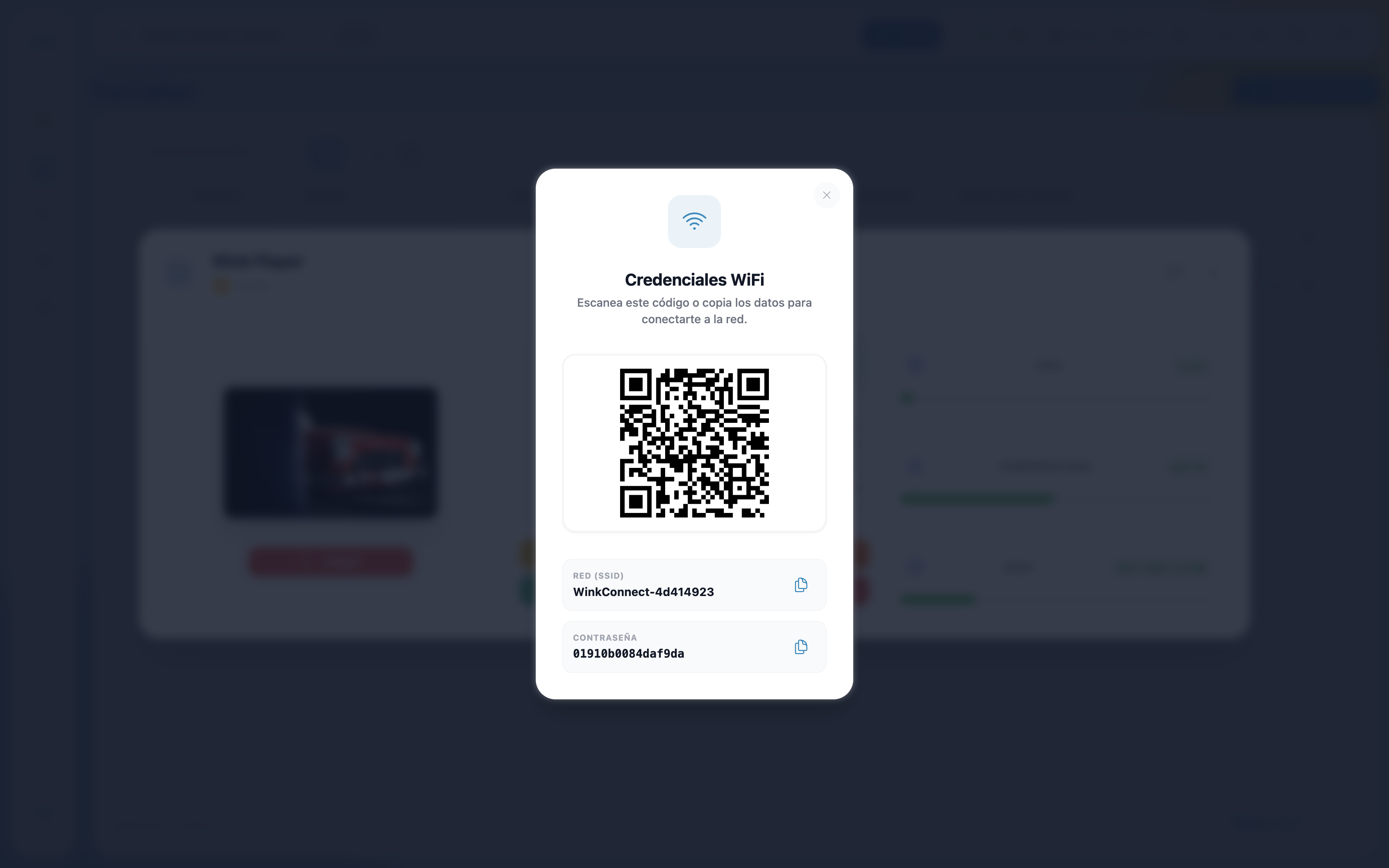
Next to the connection status, a QR code button lets you view the Wi-Fi credentials of the network the player is connected to. This is useful when you need to reconnect a device or verify which network it is using.
Device Hotspot
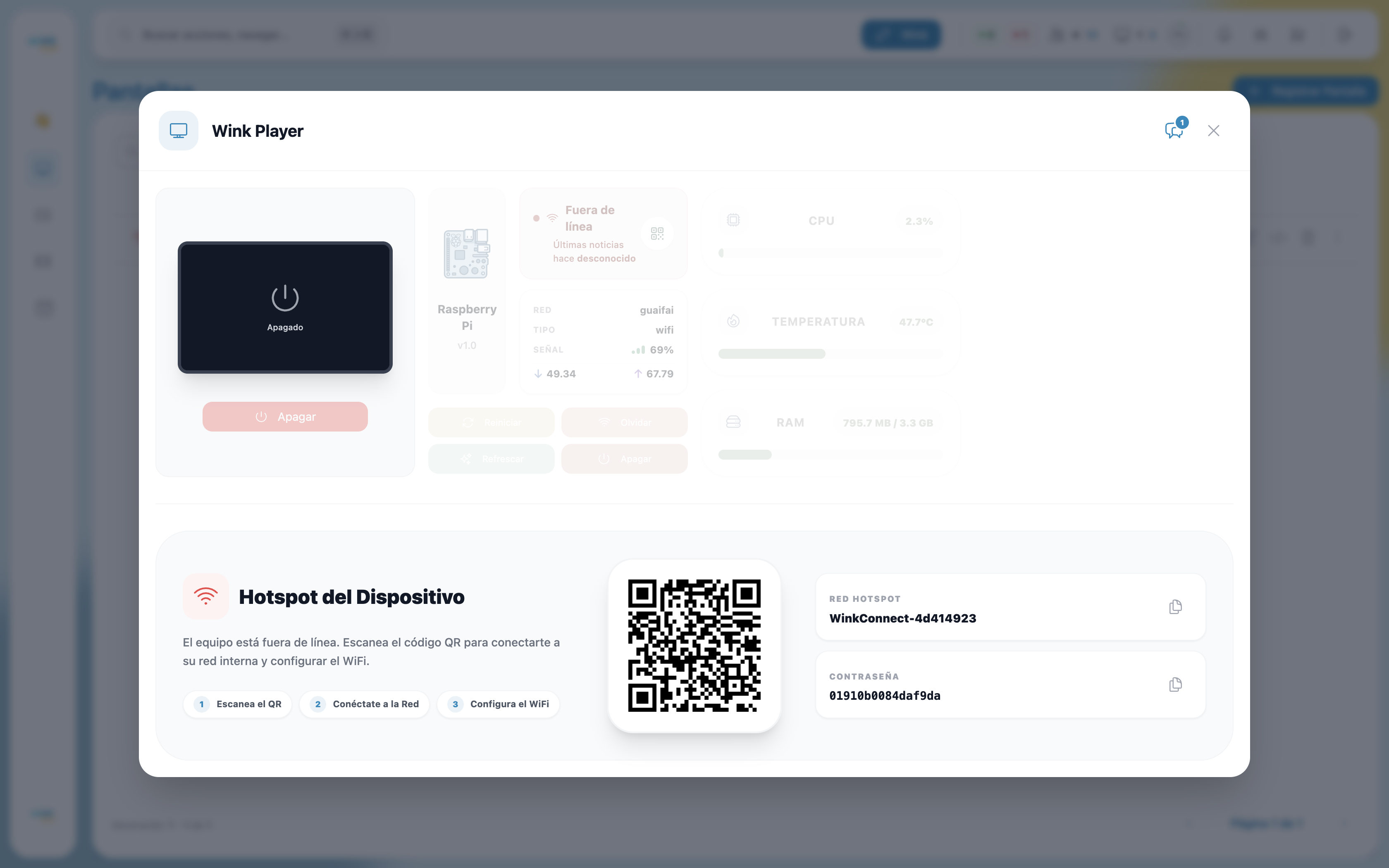
If the player is offline, the connection section is replaced by the Device Hotspot panel. From here you can connect directly to the player's access point to configure a new Wi-Fi network.
The panel shows:
- A QR code to connect quickly from your phone.
- The device's hotspot network name (SSID).
- The hotspot password.
- Three guided steps: Scan the QR → Connect to the Network → Configure Wi-Fi.
System Metrics
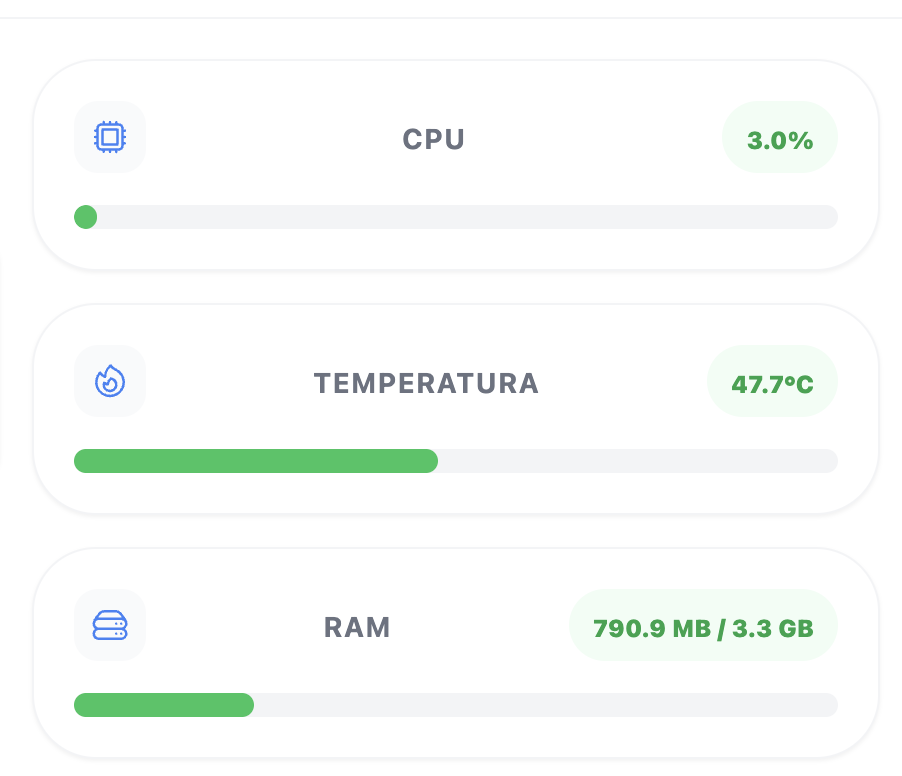
Three live metrics show the player's hardware health, each with a color-coded progress bar:
| Metric | Green | Orange | Red |
|---|---|---|---|
| CPU | < 50% | 50–80% | > 80% |
| Temperature | < 60 °C | 60–80 °C | > 80 °C |
| RAM | < 50% used | 50–80% used | > 80% used |
Remote Actions
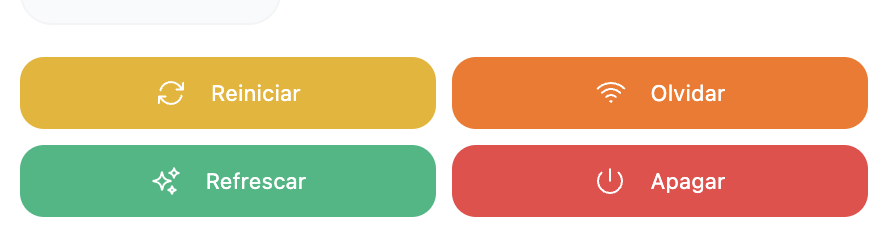
Four action buttons let you control the player remotely. All actions require an active connection — they are disabled when the player is offline.
| Button | Color | What it does |
|---|---|---|
| Restart | Yellow | Reboots the device hardware. |
| Forget | Orange | Reboots the device and erases all saved Wi-Fi networks. Use this when you need to connect the player to a different network — it will restart in hotspot mode so you can set up a new connection. |
| Refresh | Green | Reloads the player software without rebooting the hardware. |
| Shut Down | Red | Completely powers off the device. The player must be turned on manually afterward. |
About "Forget"
Forget is not a simple restart. It wipes the device's saved Wi-Fi configurations, which means it will create a hotspot on next boot for you to reconfigure the connection. Only use it if you intend to change the player's network.
Notes
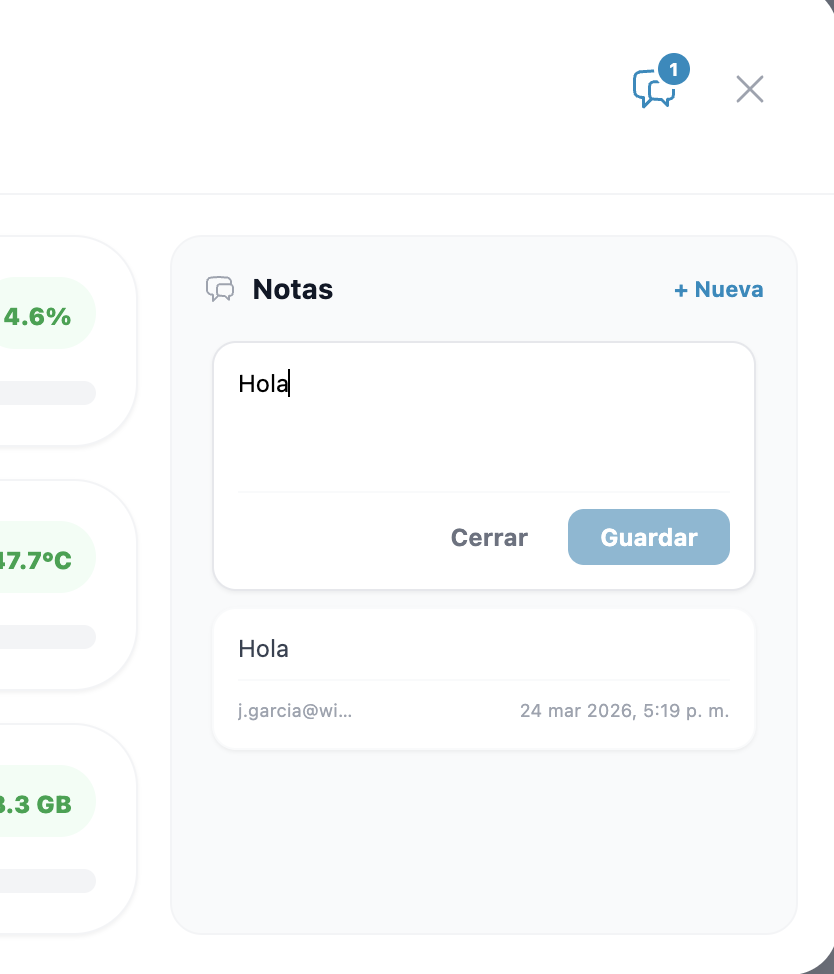
The monitoring panel includes a notes section for your team to leave internal comments about the player — installation details, known issues, maintenance history, or any relevant context. Notes show the author and timestamp.