
Explore Stock
Wink App integrates with Pexels to give you access to thousands of free stock photos and videos. You can search, preview, and save them directly to your file library — no downloads or external tools needed.
Opening the Stock Explorer
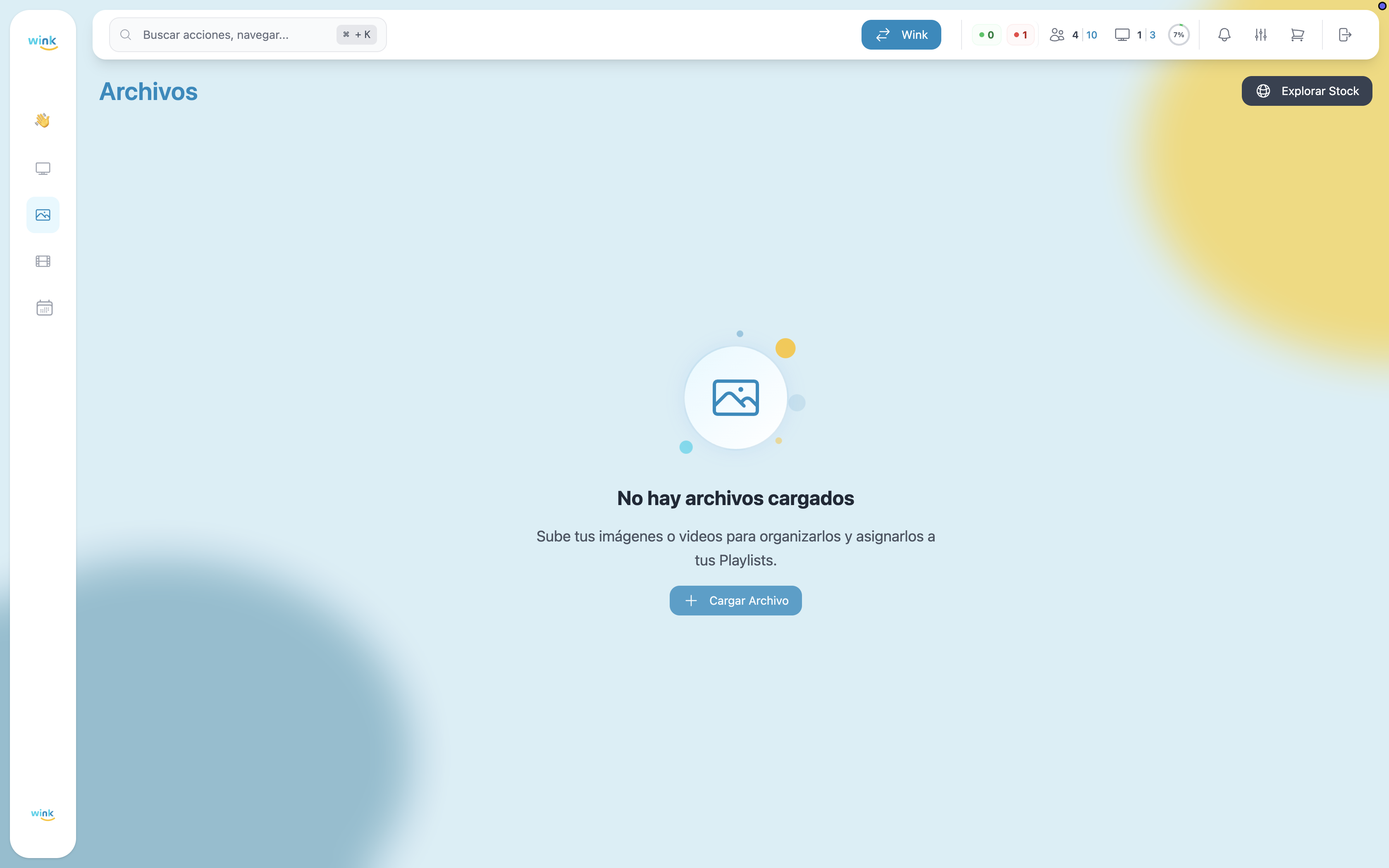
Click the Explore Stock button in the top-right corner of the Files section.
Searching for Content
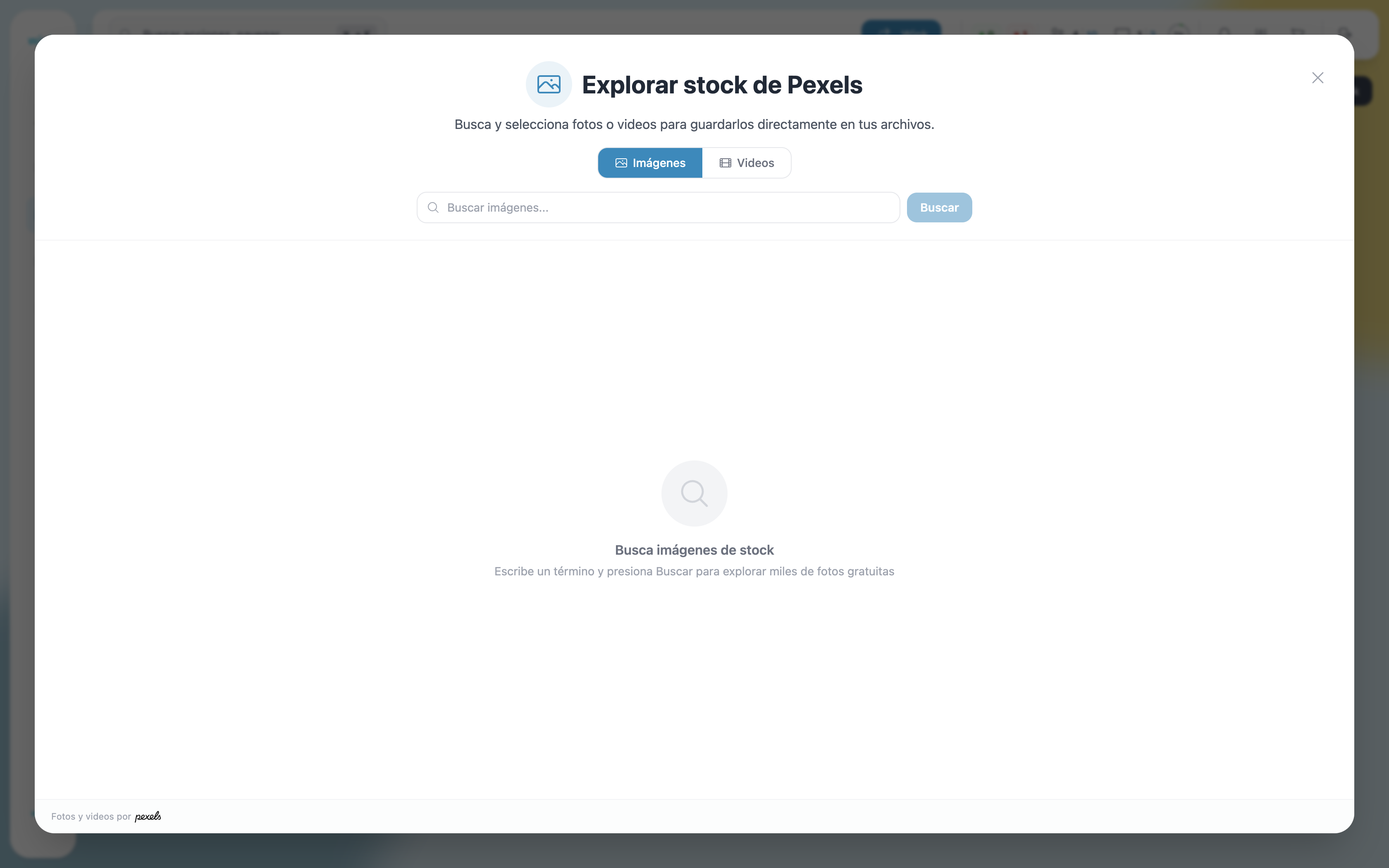
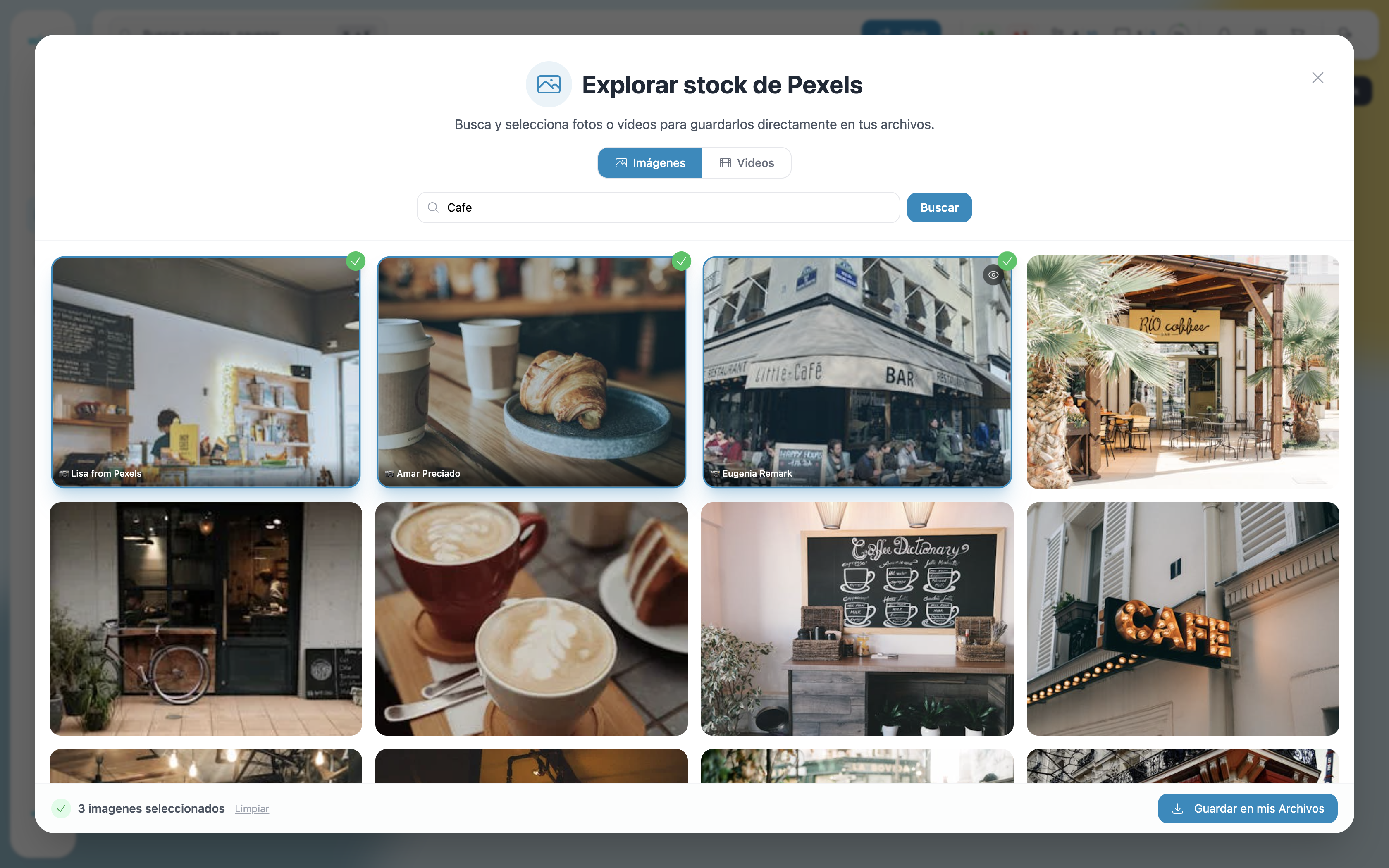
The stock explorer opens a modal with two tabs:
- Images — Search photos from Pexels.
- Videos — Search video clips from Pexels.
Type a keyword in the search field and click Search to load results.
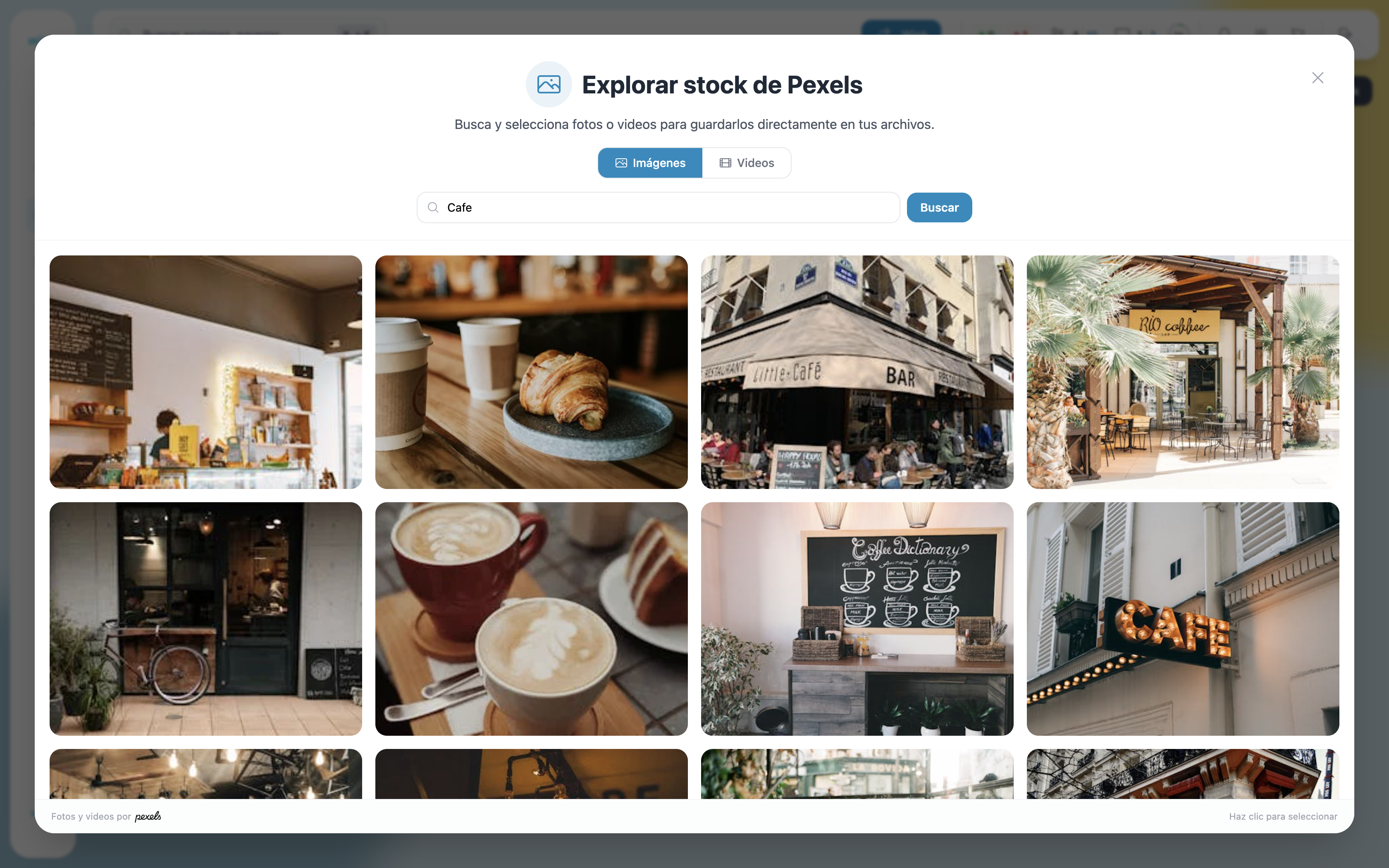
Results appear as a photo grid. You can scroll through them or refine your search with a new keyword.
Previewing a File
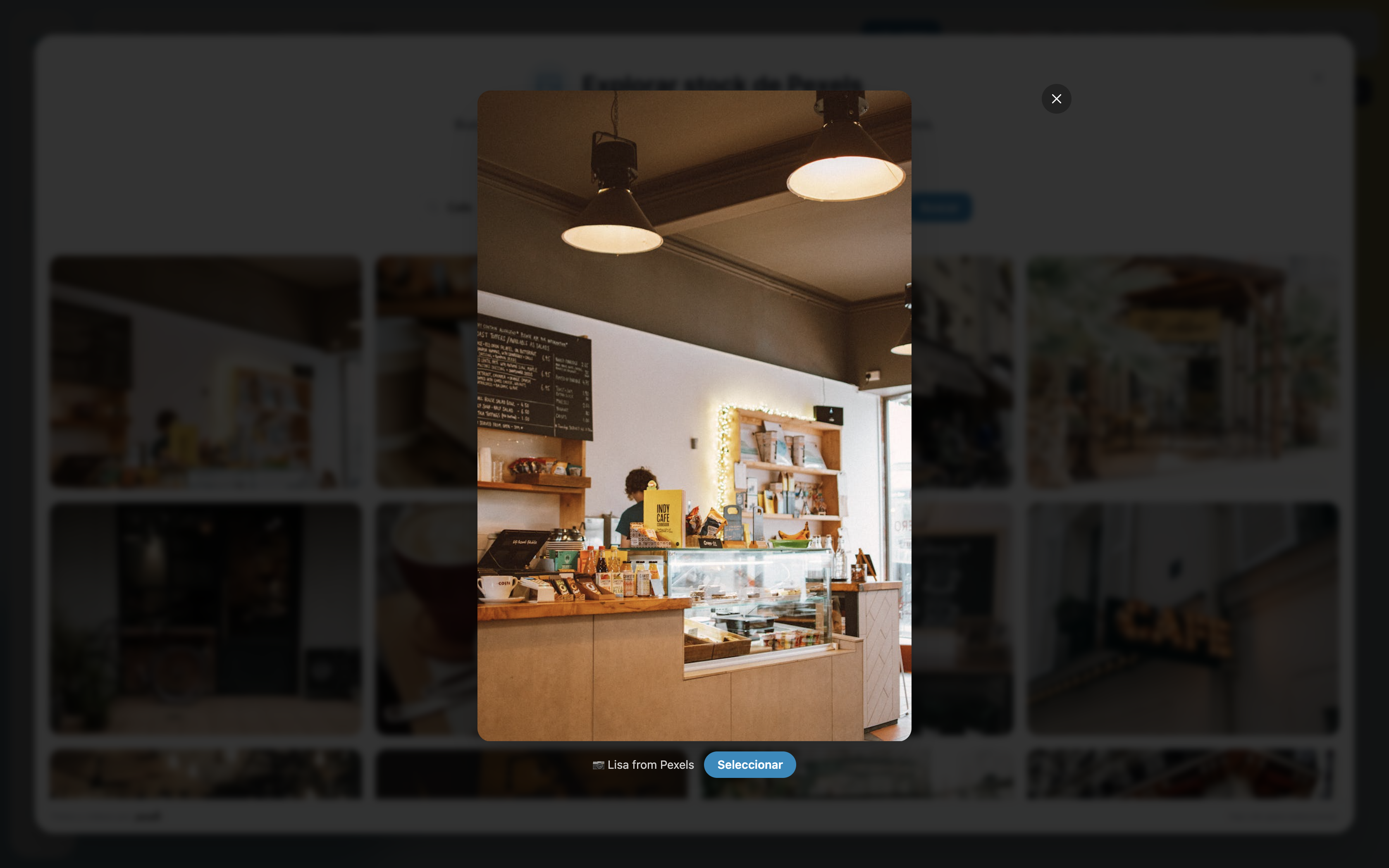
Click any result to open a full preview of that image or video. The preview shows:
- The file at a larger size.
- The photographer's credit (e.g., Lisa from Pexels).
- A Select button to add it to your selection.
Selecting Multiple Files
You can select more than one file before saving. When you click Select on a file (or click its thumbnail in the results grid), a green checkmark appears on it.
The bottom of the modal shows:
- "X images selected" — Count of selected files.
- Clear — Removes all selections.
- Save to my Files — Saves all selected files to your library.
Saving to Your Library
Click Save to my Files to start the transfer. The modal closes and the files begin uploading in the background — the same progress toast used for regular uploads appears in the bottom-right corner.
As files finish processing they appear immediately in your library.
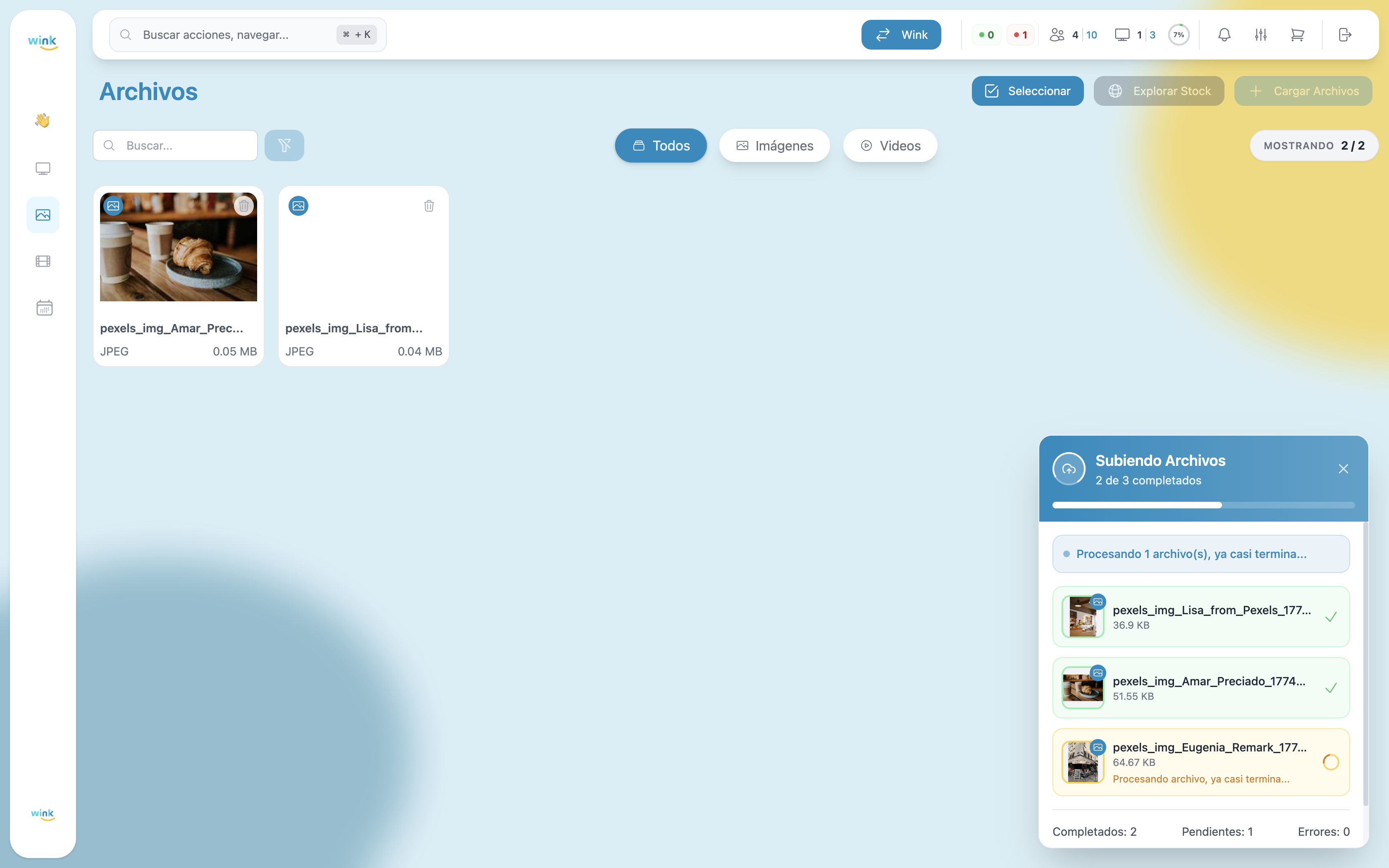
Photo and video credit
All content comes from Pexels. Wink App displays the photographer's attribution on each file as required by Pexels' license.