
Edit a Player
You can update a Wink Player's information at any time — name, configuration, location, and more — without affecting its assigned content or schedules.
Accessing the Edit Form
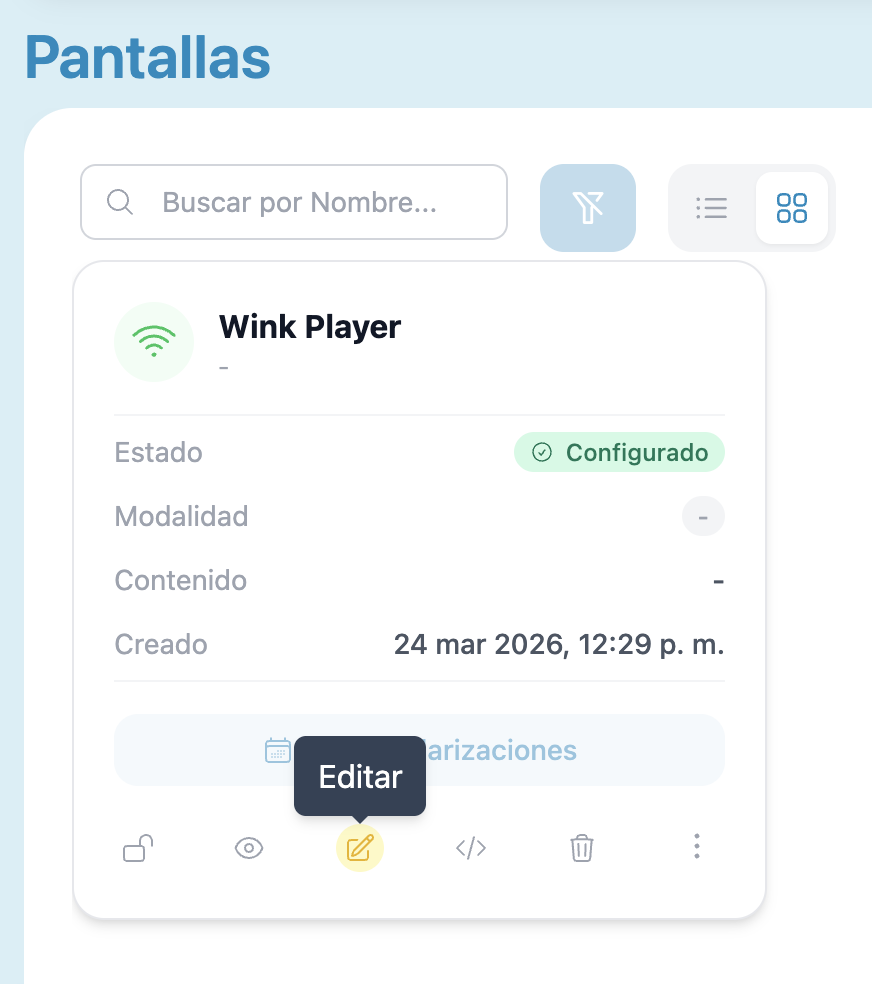
The edit button is available in both views of the Players section.
List view — At the right end of the player's row, click the pencil icon. A tooltip reading "Edit Information" confirms you are on the right button.

Card view — At the bottom of the player's card, click the pencil icon (tooltip: "Edit").
The edit form opens in a modal. All fields are pre-filled with the player's current information.
Editable Fields
The form has two tabs: General and Location.
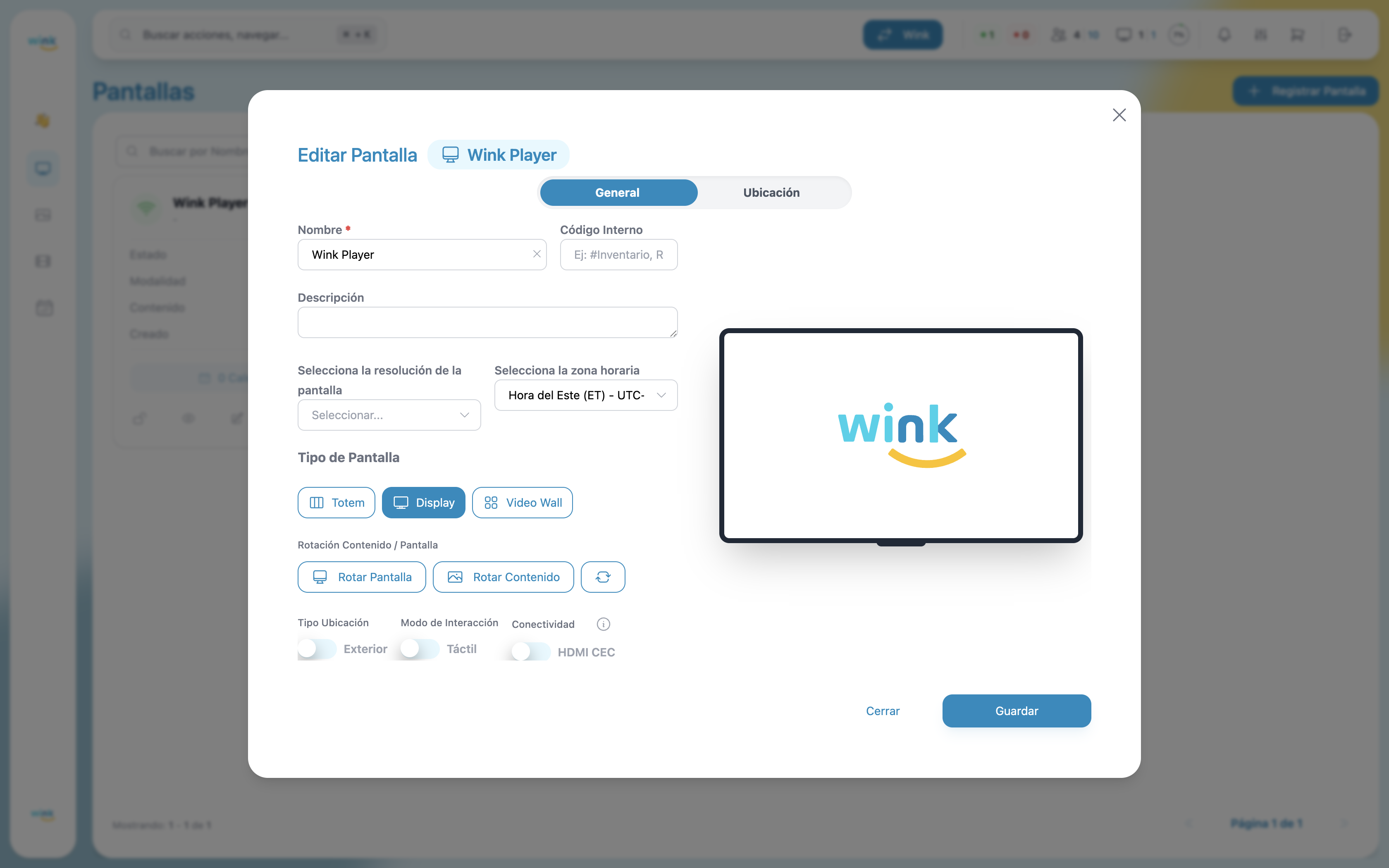
General Tab
| Field | Description |
|---|---|
| Name | Display name of the player. Required — cannot be left empty or duplicated. |
| Internal Code | Optional internal reference code for your organization. |
| Description | Optional free-text description. |
| Resolution | Screen resolution. Select from the options supported by the device. |
| Timezone | The timezone used for schedules and timestamps on this player. |
| Screen Type | Display, Totem, or Video Wall. |
| Screen Rotation | Physical rotation of the display: 0°, 90°, 180°, or 270°. |
| Content Rotation | Rotation applied to the content rendered on screen. |
| Outdoor | Mark the player as installed in an outdoor environment. |
| Touch | Enable touch/interaction mode. |
| HDMI CEC | Enable HDMI CEC control. |
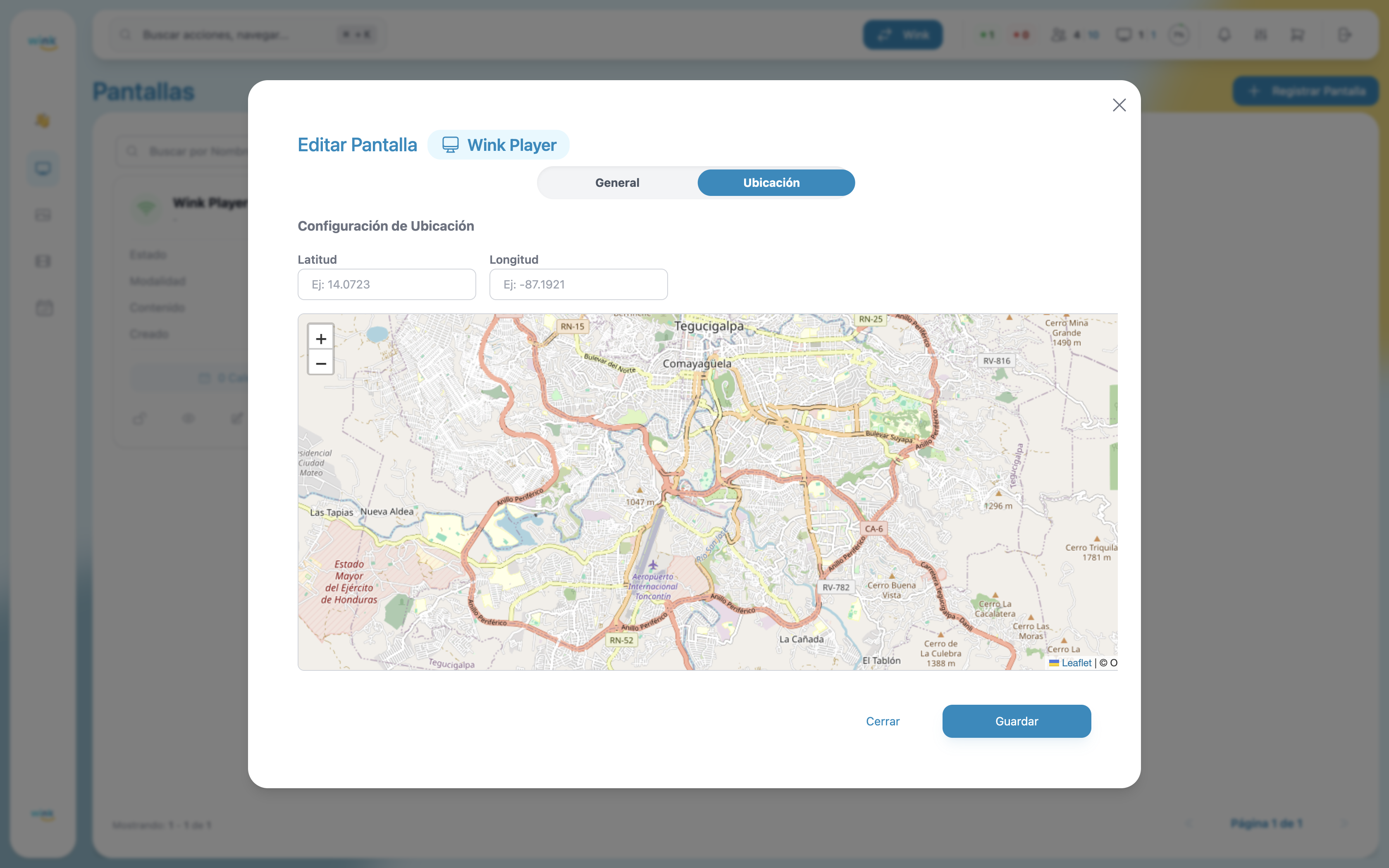
Location Tab
| Field | Description |
|---|---|
| Latitude / Longitude | GPS coordinates. Enter manually or click on the map. |
| Map | Interactive map — click any point to set the player's location automatically. |
Saving Changes
Once you have made your changes, click Save. No confirmation dialog appears — the changes are applied immediately.
- Success — A notification confirms the update and the modal closes automatically.
- Error — A notification indicates the issue. The modal stays open so you can correct and retry.
Restricted Players
Some players may be marked as Restricted by an administrator. If a player is restricted, the edit button is disabled for regular users. Contact your account administrator if you need to modify a restricted player.