
Manage Files
Once files are in your library you can browse them, inspect their details, rename them, and delete them.
The File Library
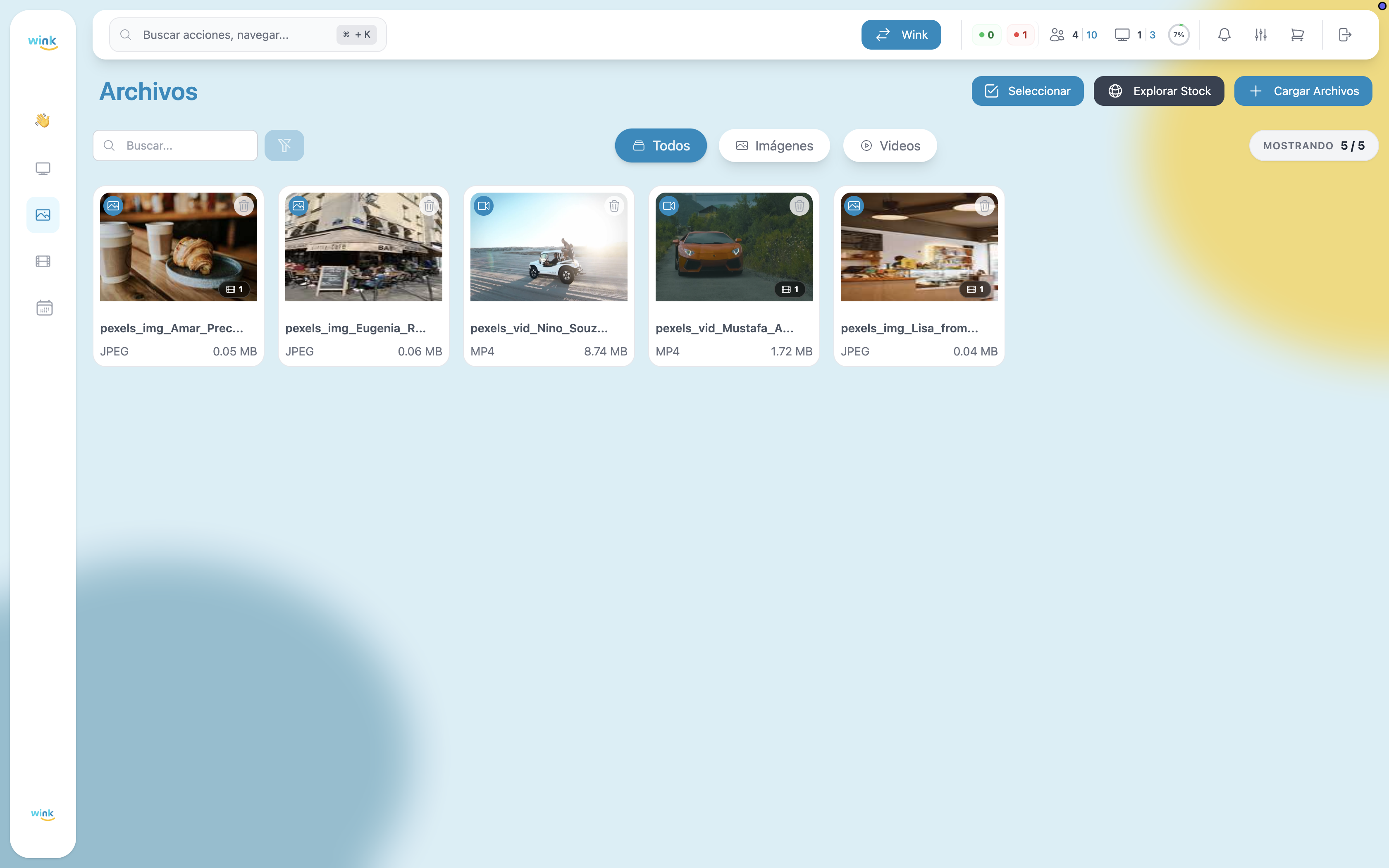
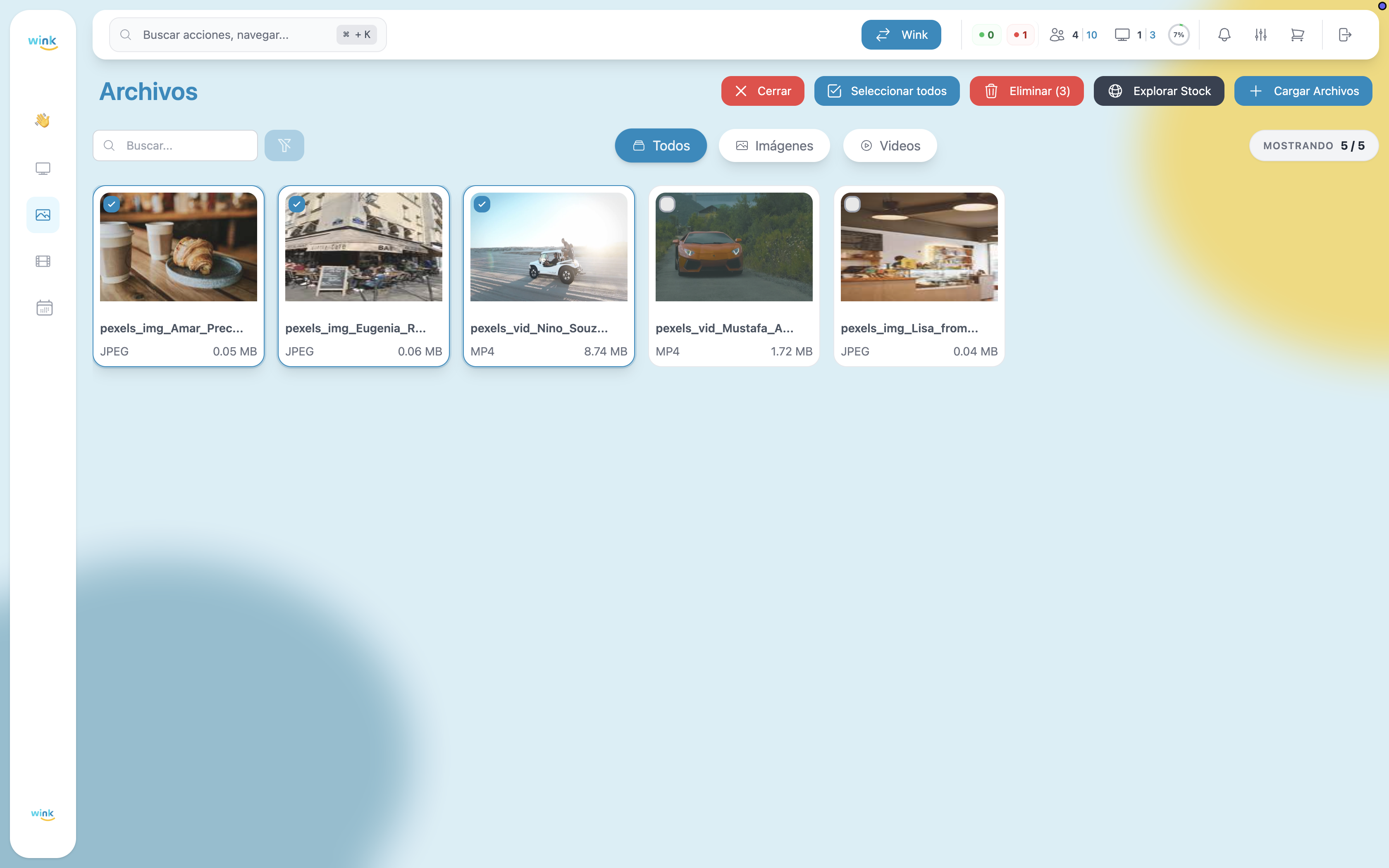
The library displays all your files as a card grid.
Filters and Search
| Control | Description |
|---|---|
| All / Images / Videos | Filter the library to show only one type. |
| Search field | Search by file name. |
| Showing X/Y | Counter in the top-right showing how many files match the current filter. |
File Cards
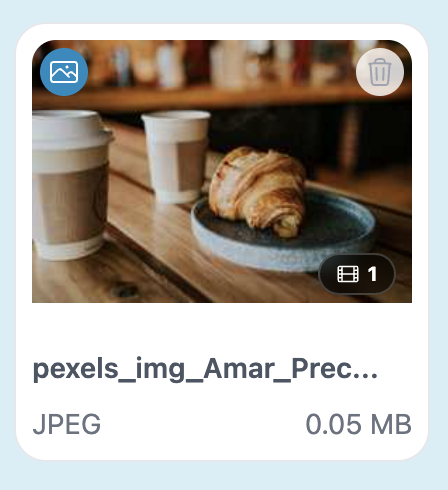
Each card shows:
- Thumbnail — Preview of the image or first frame of the video.
- File name — Truncated if long.
- Format — File extension (e.g., JPEG, MP4).
- Size — File size in MB.
- Playlist badge — If the file is assigned to one or more playlists, a badge appears on the thumbnail showing the count.
File Details
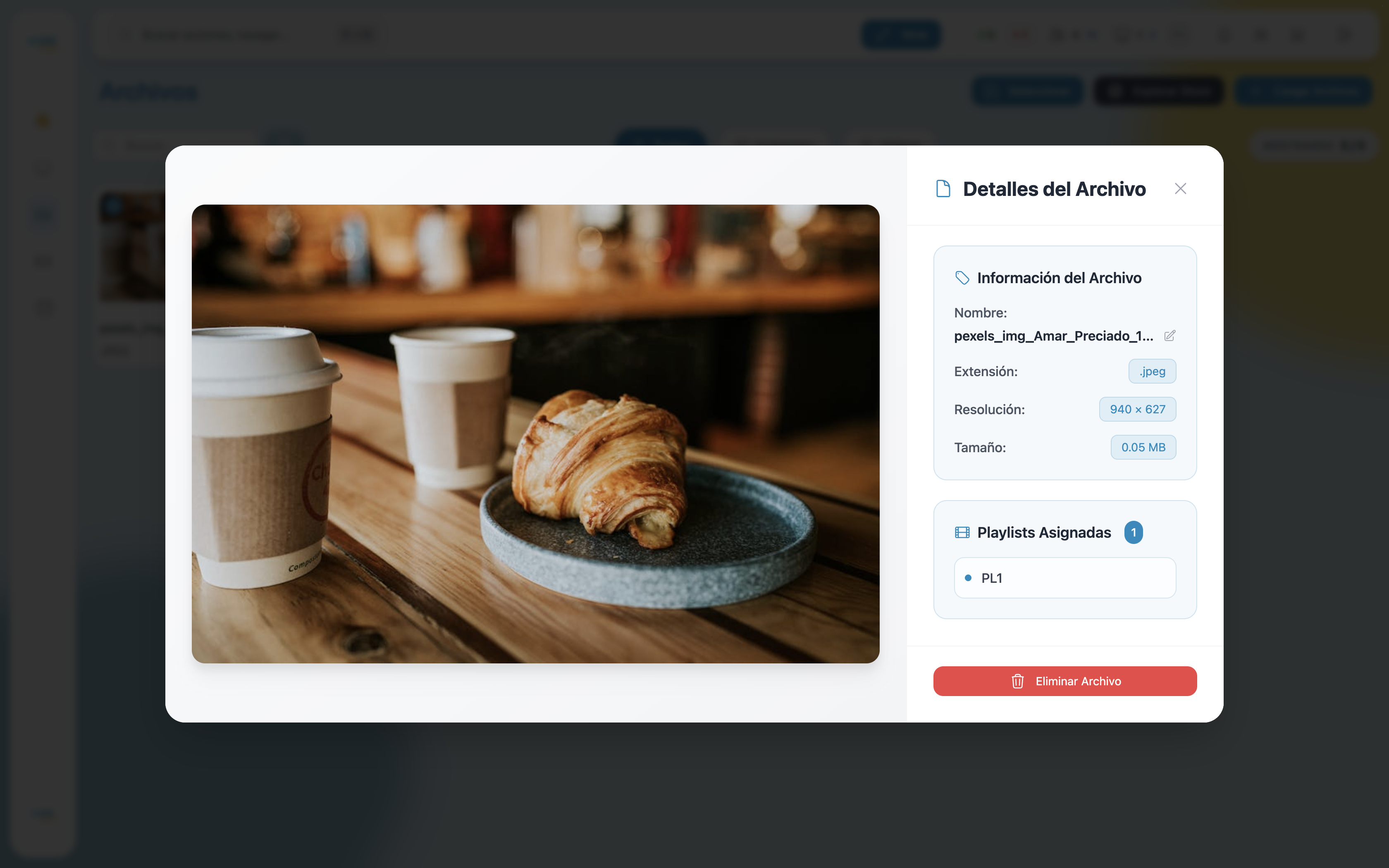
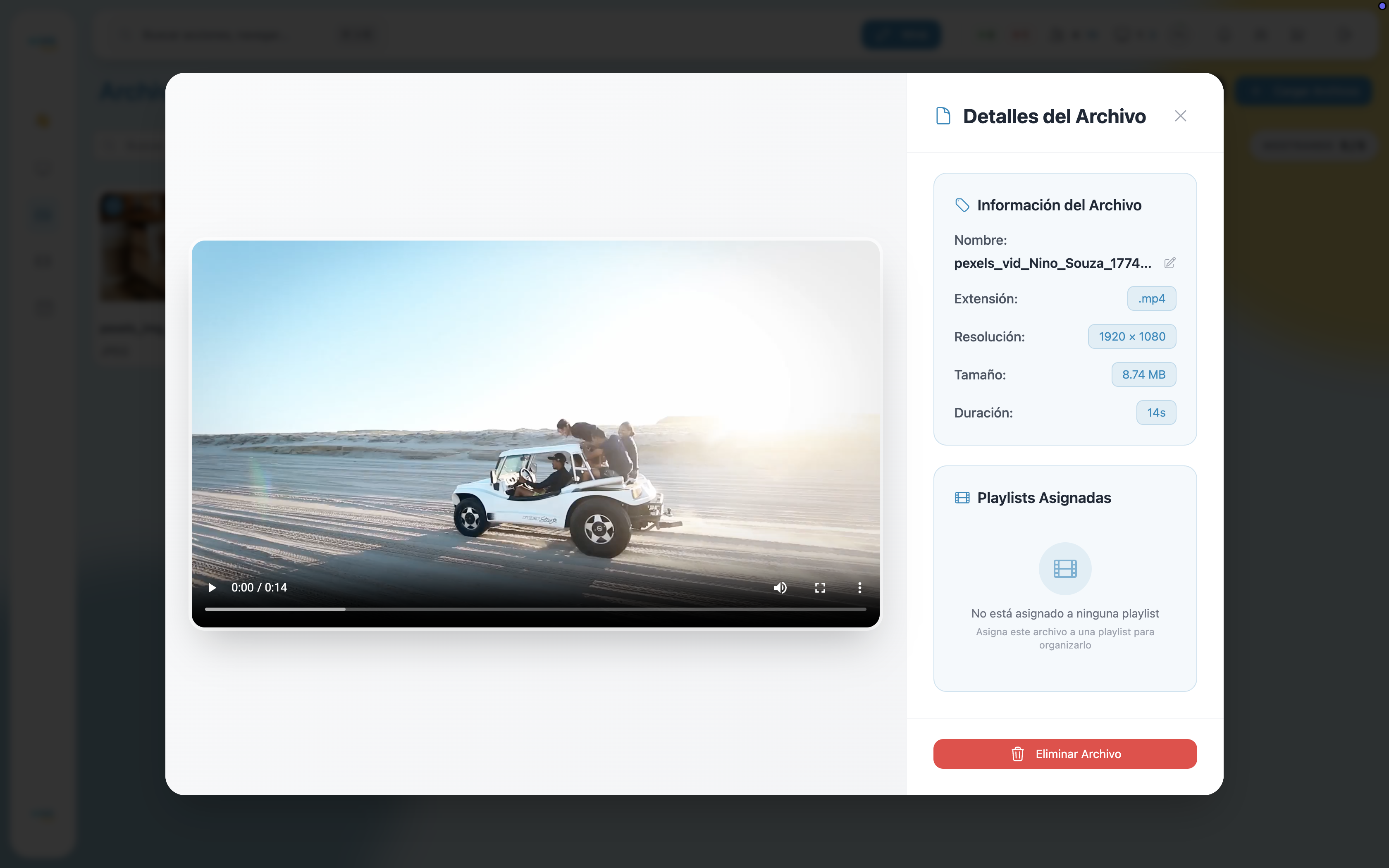
Click any card to open its detail panel. The panel slides in alongside a large preview of the file.
File Information
| Field | Description |
|---|---|
| Name | File name. Click the pencil icon to rename it. |
| Extension | File format (e.g., .jpeg, .mp4). |
| Resolution | Pixel dimensions (images and videos only). |
| Size | File size in MB. |
Assigned Playlists
This section lists every playlist that currently contains this file, with a count badge next to the heading.
If the file is not assigned to any playlist, the section shows a message indicating it hasn't been added to a playlist yet.
Selecting Multiple Files
Click the Select button (top-right) to enter multi-select mode. The toolbar changes to show:
- Select all — Marks every file in the current view.
- Delete (N) — Deletes all selected files (the count updates as you select).
- Close — Exits multi-select mode without making changes.
Click any card to toggle its selection. Selected cards show a blue checkmark; unselected ones show an empty circle.
Bulk Delete
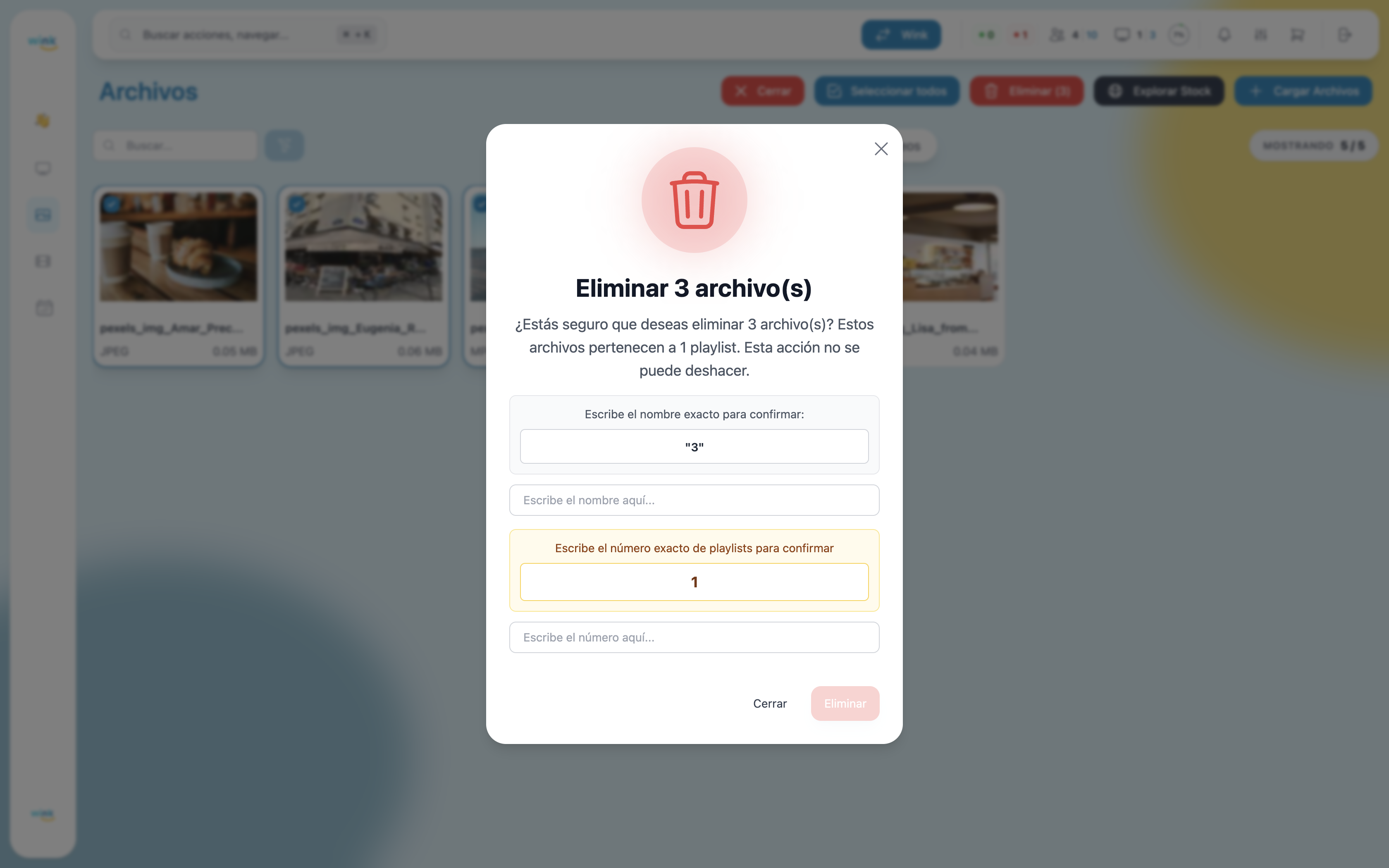
Click Delete (N) to open the bulk delete confirmation. The modal behaves the same way as single-file deletion, with one difference: instead of typing the file name, you type the number of files being deleted.
If any of the selected files belong to playlists, you must also type the number of playlists affected.
Deleting a File
You can also delete files individually from two places:
- From the card — Click the trash icon in the top-right corner of the card.
- From the detail panel — Click the red Delete File button at the bottom.
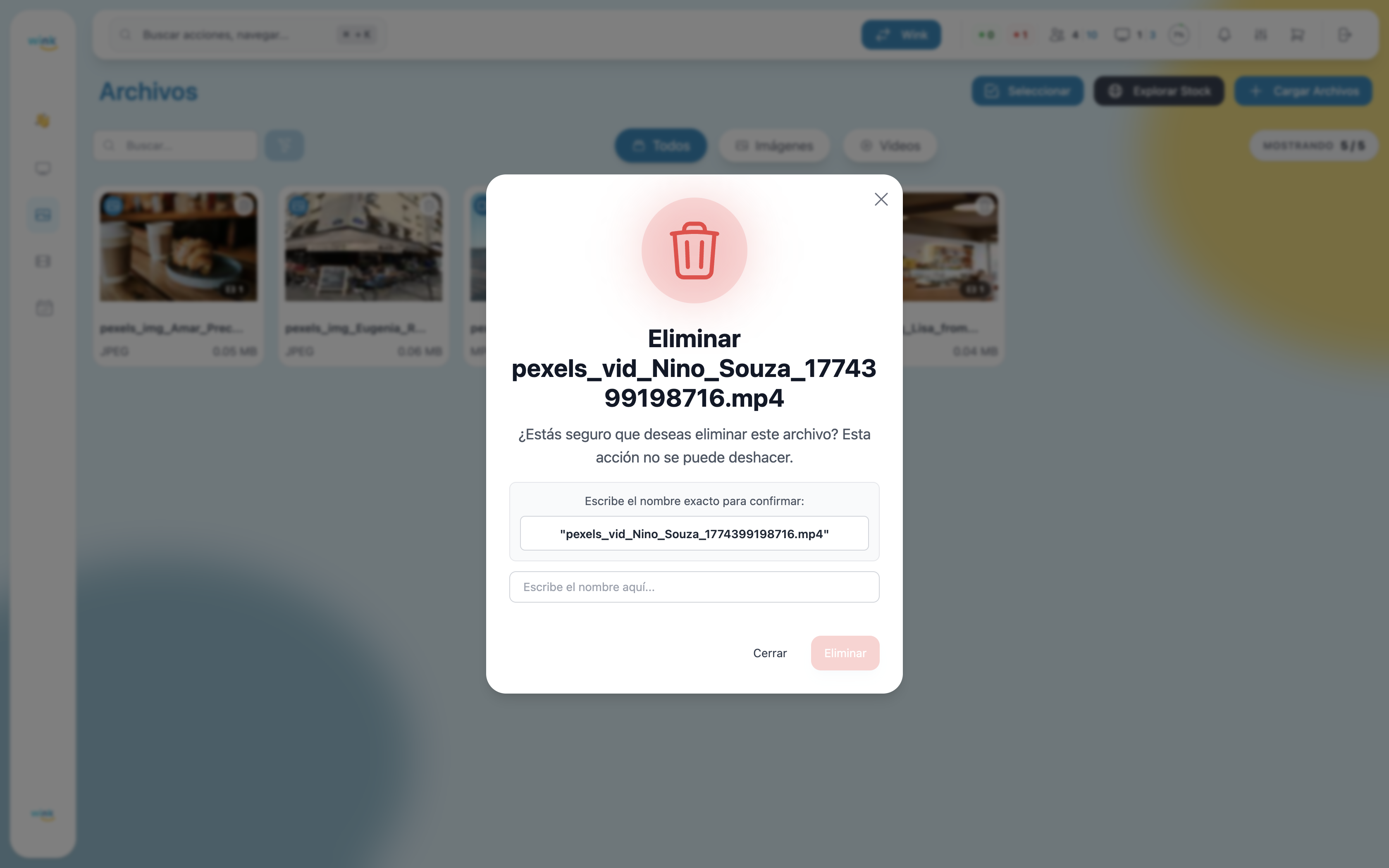
Both trigger a confirmation modal. The modal content varies depending on whether the file is assigned to playlists.
File not in any playlist
You only need to type the exact file name to confirm.
File assigned to one or more playlists
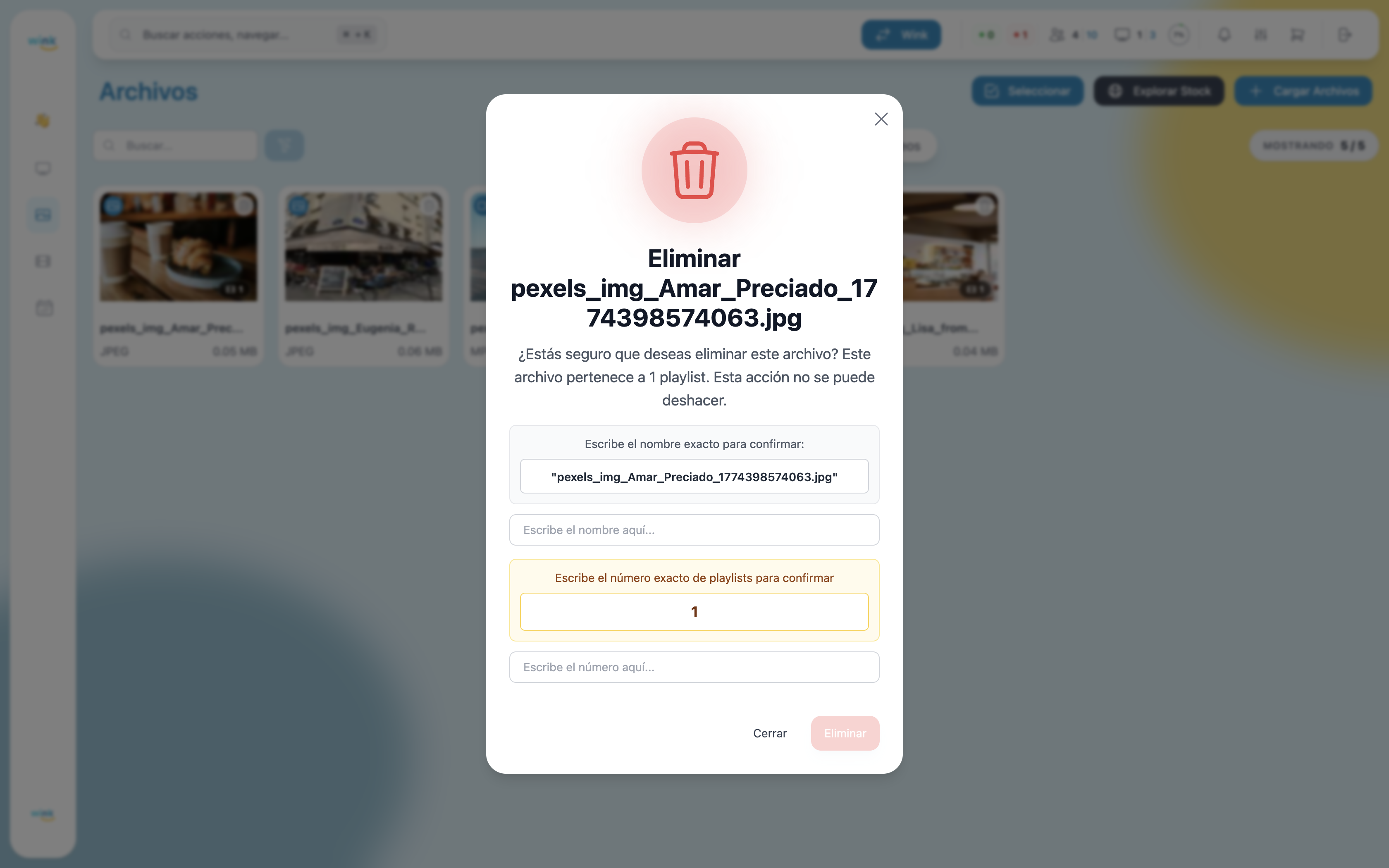
The modal warns you that the file belongs to playlists and that removing it will also remove it from all of them. You need to type:
- The exact file name.
- The exact number of playlists it is assigned to.
Both fields must match before the Delete button becomes active.
This action cannot be undone
Deleting a file permanently removes it from your library and from every playlist it is part of.