Create a Playlist
Opening the Editor
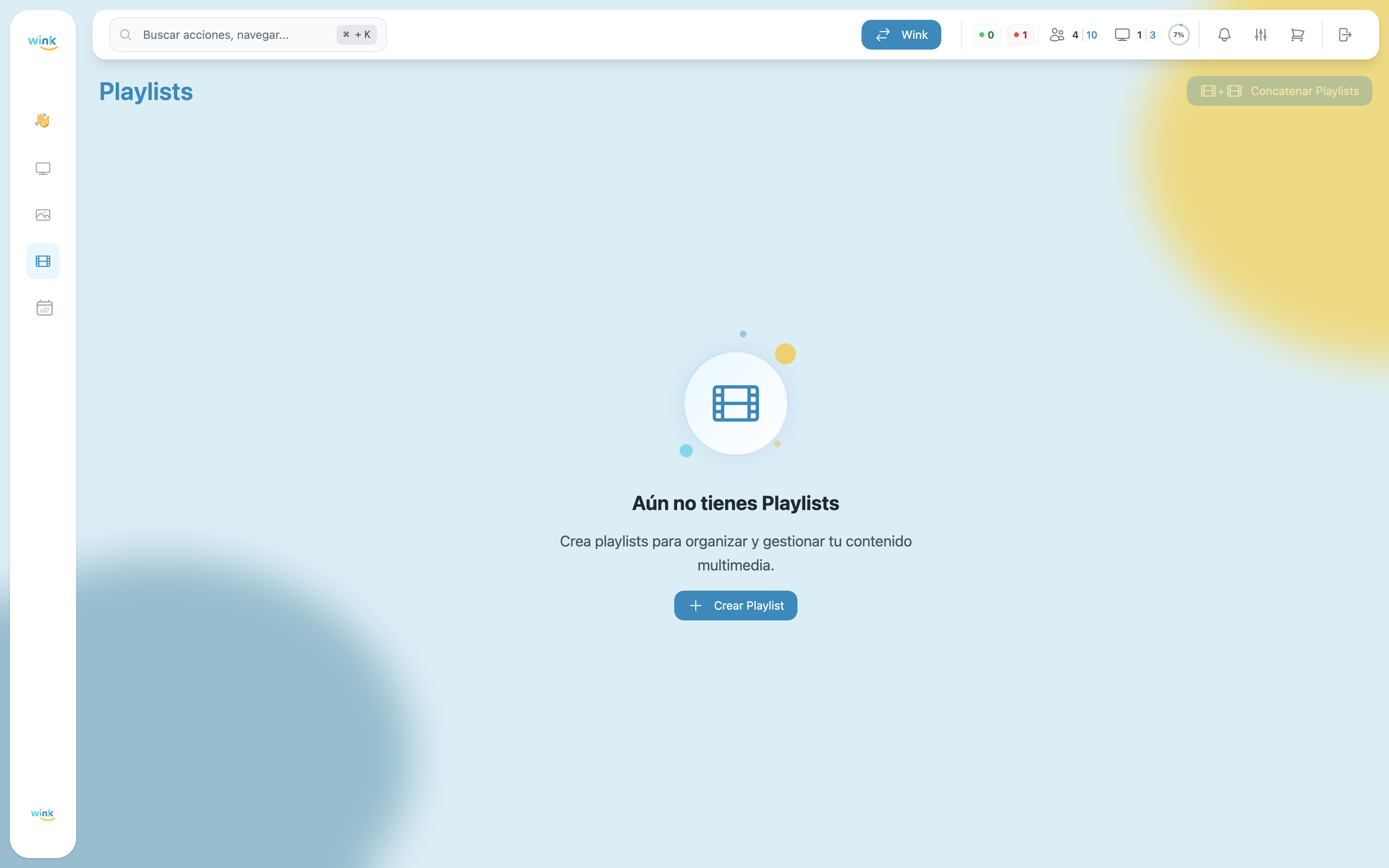
Click the Create Playlist button in the top-right corner of the Playlists page (or in the center of the empty state).
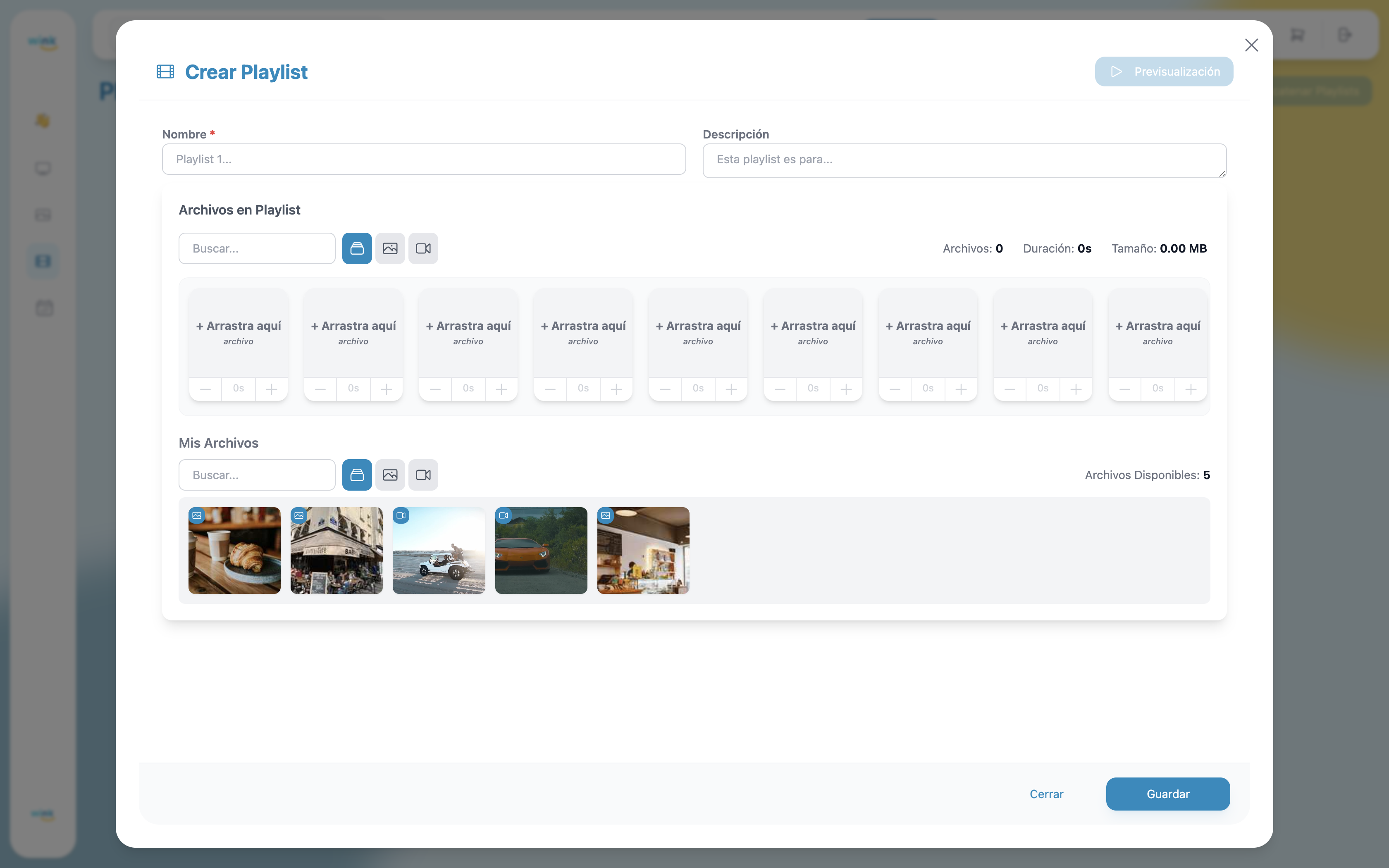
The playlist editor opens as a full-page modal.
The Playlist Editor
The editor has two areas:
- Playlist Files (top) — The ordered sequence of files that will play on screen.
- My Files (bottom) — Your uploaded files, ready to drag into the playlist.
Step 1 — Name Your Playlist
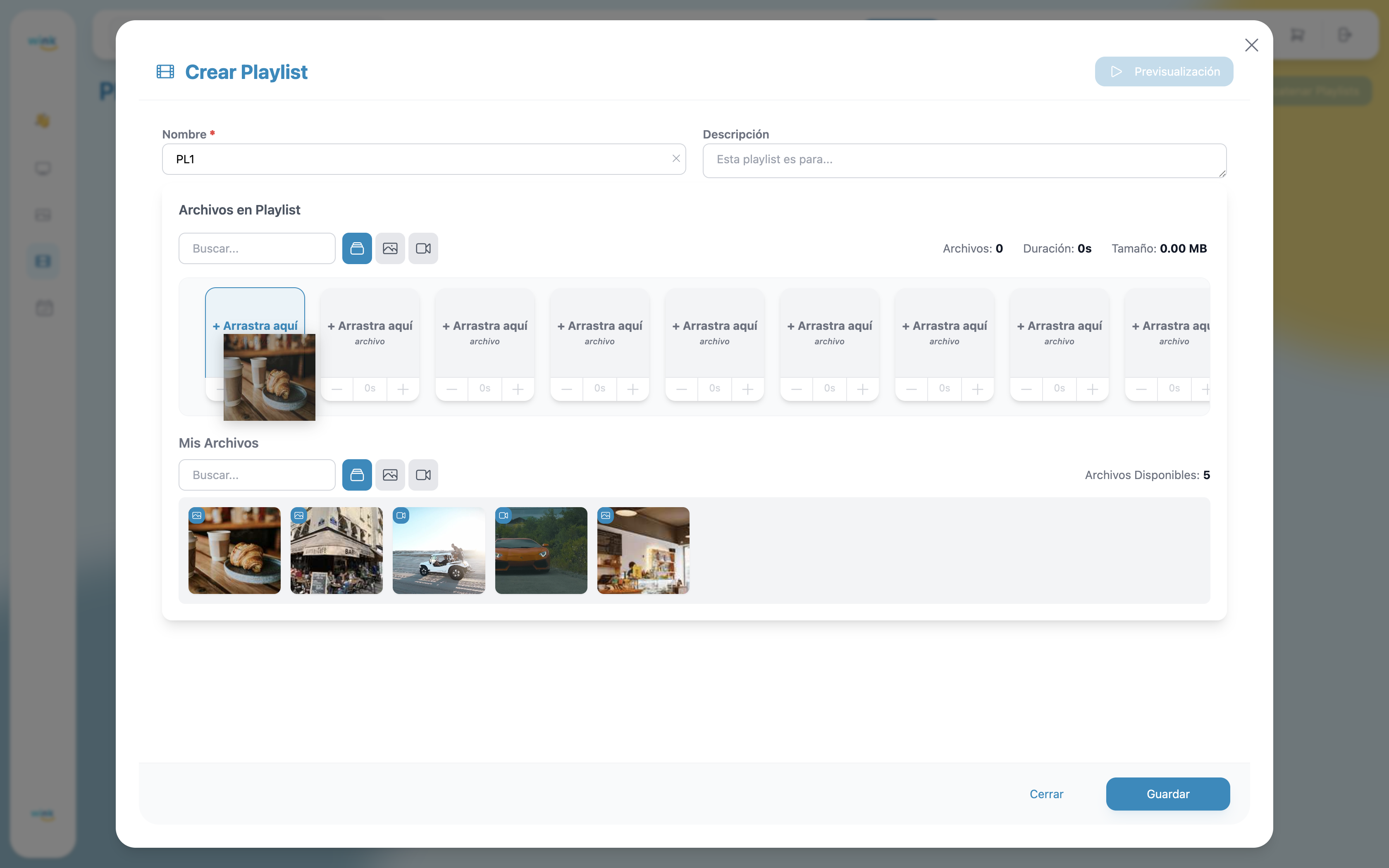
Fill in the Name field (required). You can optionally add a Description for internal reference.
Step 2 — Add Files
Drag any file from the My Files section up into an empty slot in the Playlist Files area. The target slot highlights in blue to indicate it will accept the drop.
You can add the same file to multiple slots. This is useful when you want a specific image or video to appear more than once per loop.
Use the search field and type filters (All / Images / Videos) in either section to find files quickly.
Step 3 — Set Image Duration
Below each image slot, a duration control shows the number of seconds that image will be displayed:
— 5 s +Click + or − to adjust the duration. Videos play for their full length and cannot be shortened.
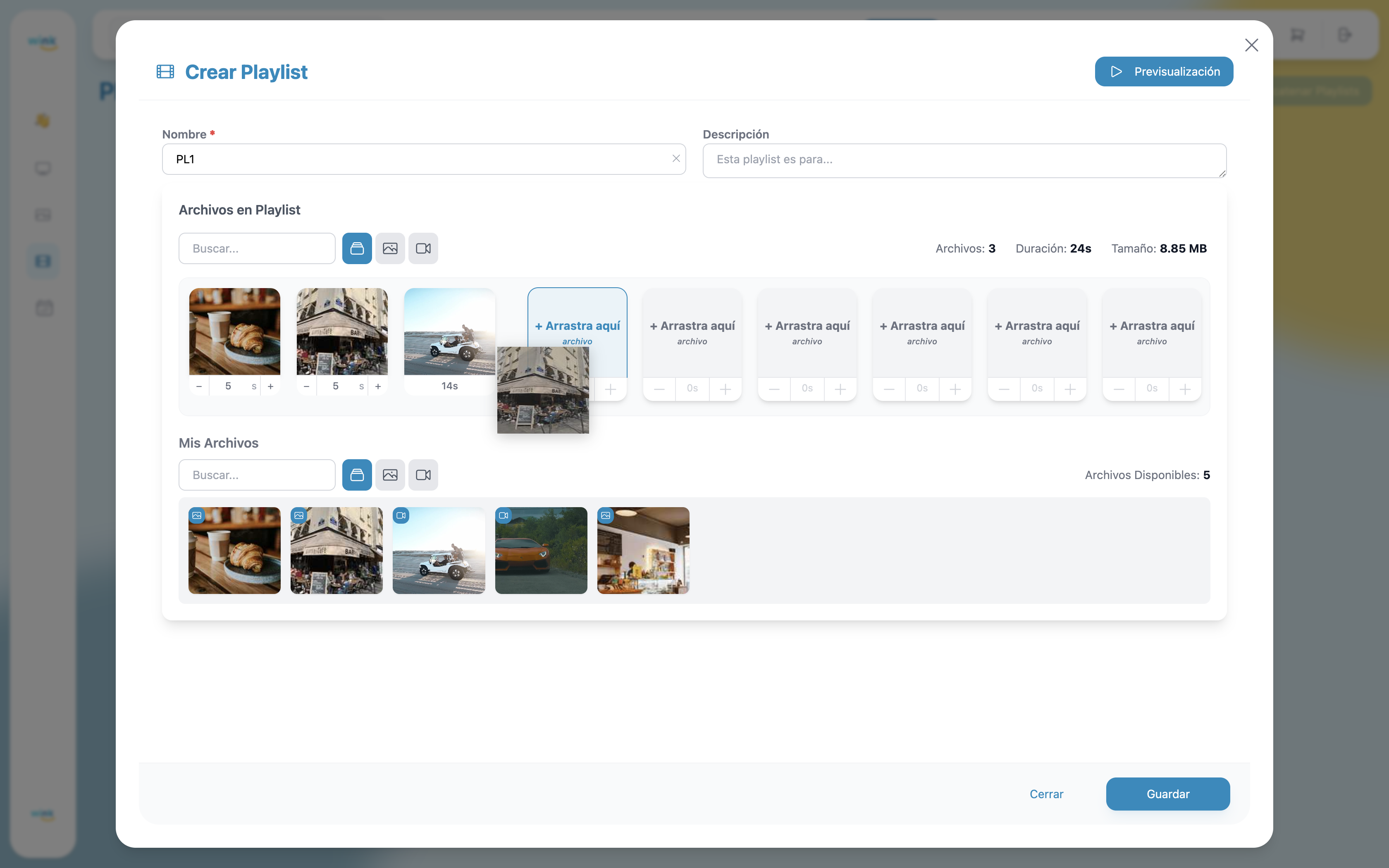
The stats bar above the slots updates in real time:
| Stat | Description |
|---|---|
| Files | Number of slots filled. |
| Duration | Total playback time of the playlist. |
| Size | Combined file size of all slots. |
Step 4 — Preview (Optional)
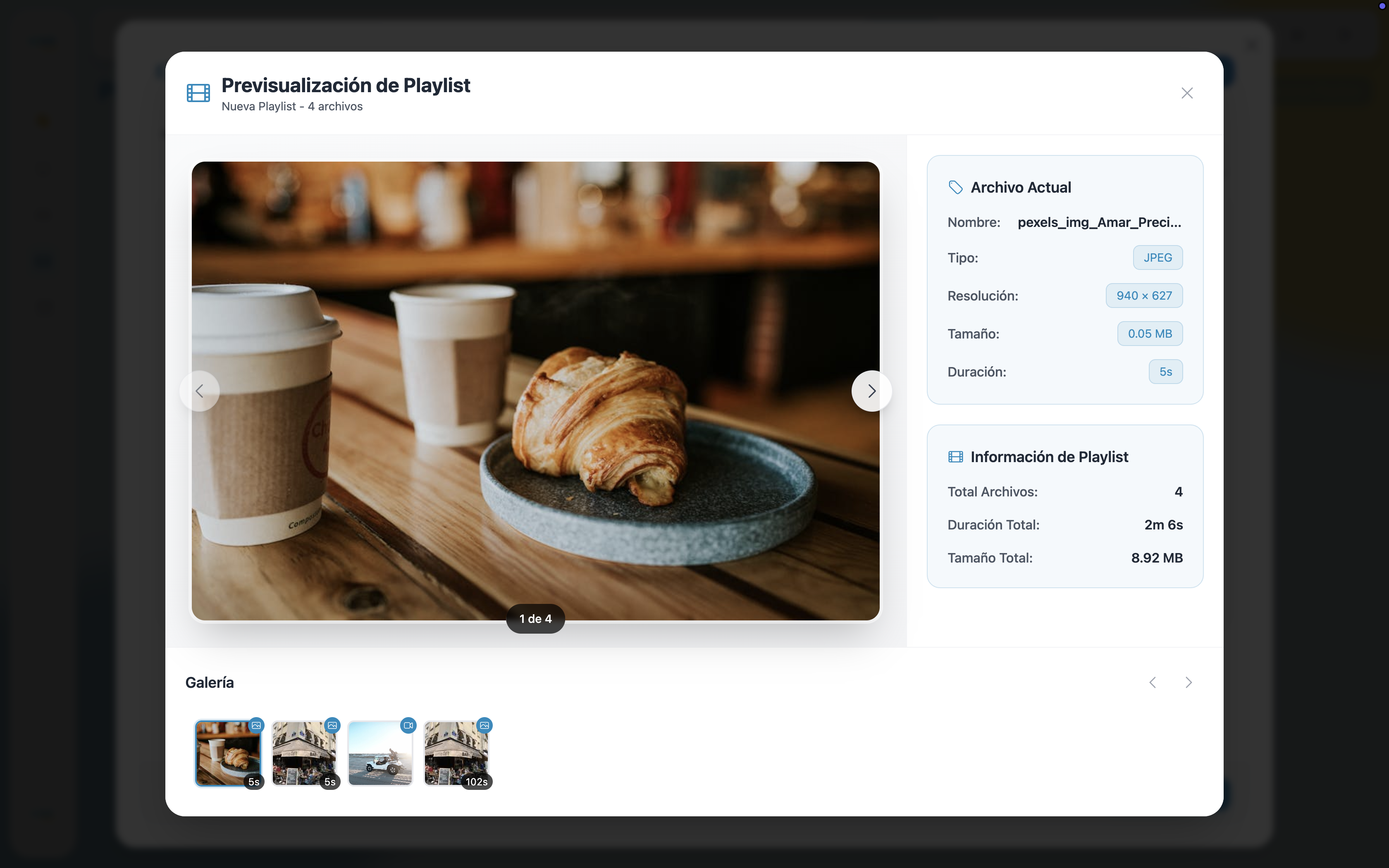
Once at least one file is added, the Preview button in the top-right becomes active. Click it to open a preview of the full playlist before saving.
The preview shows:
- A full-size viewer with previous/next arrows to step through each file (showing "X of Y").
- Current File — name, type, resolution, size, and duration of the file on screen.
- Playlist Info — total files, total duration, and total size.
- A Gallery strip at the bottom showing all files with their individual durations.
Step 5 — Save
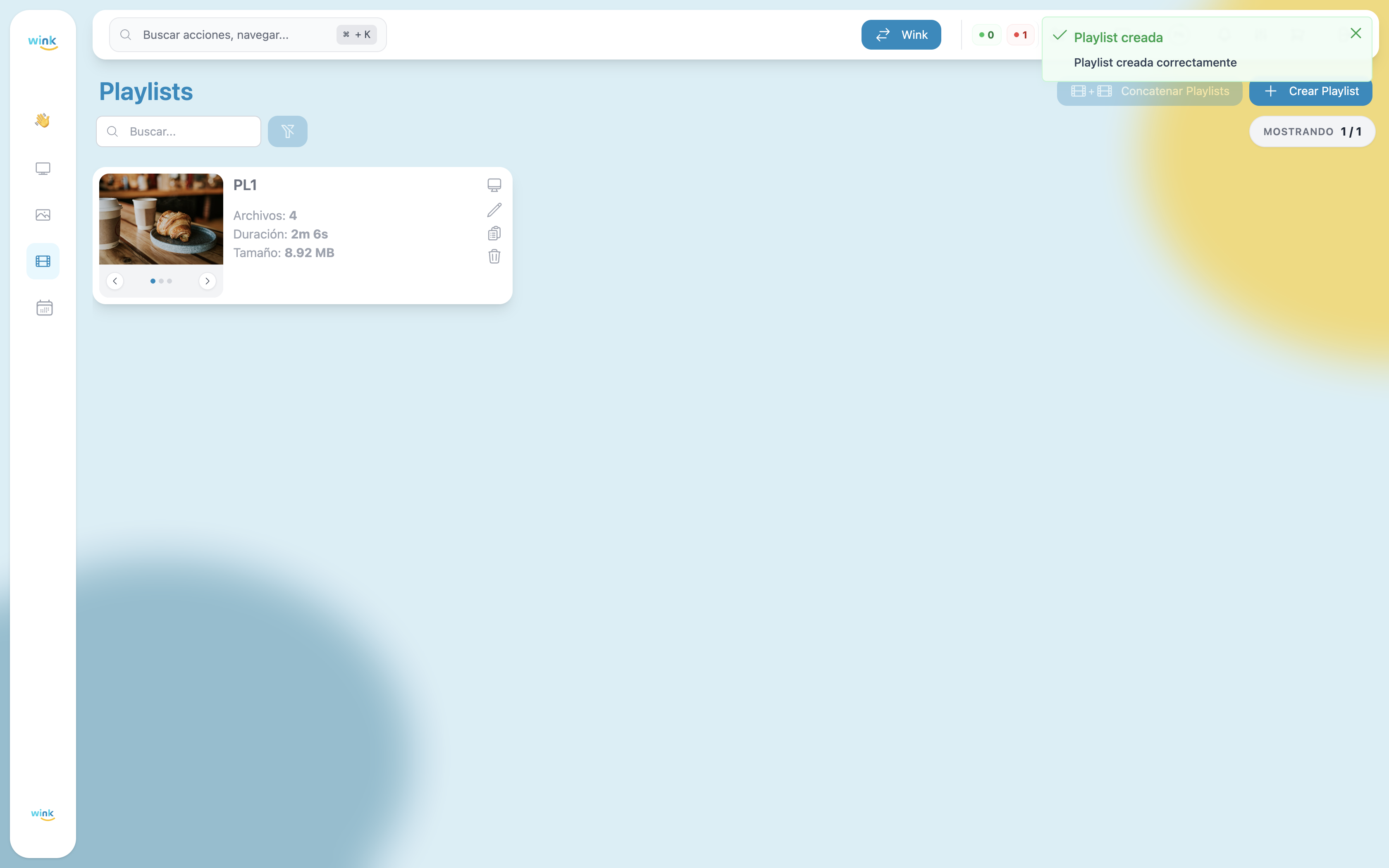
Click Save to create the playlist. A confirmation toast appears and the playlist shows up in your list immediately.