
Concatenate Playlists
The Concatenate Playlists feature lets you combine exactly two playlists into a single new one. The original playlists are not modified — a brand new playlist is created with all the files from the selected ones, in order.
How to Concatenate
Step 1 — Select the playlists
Click any playlist card to select it. Selected cards highlight with a blue border.
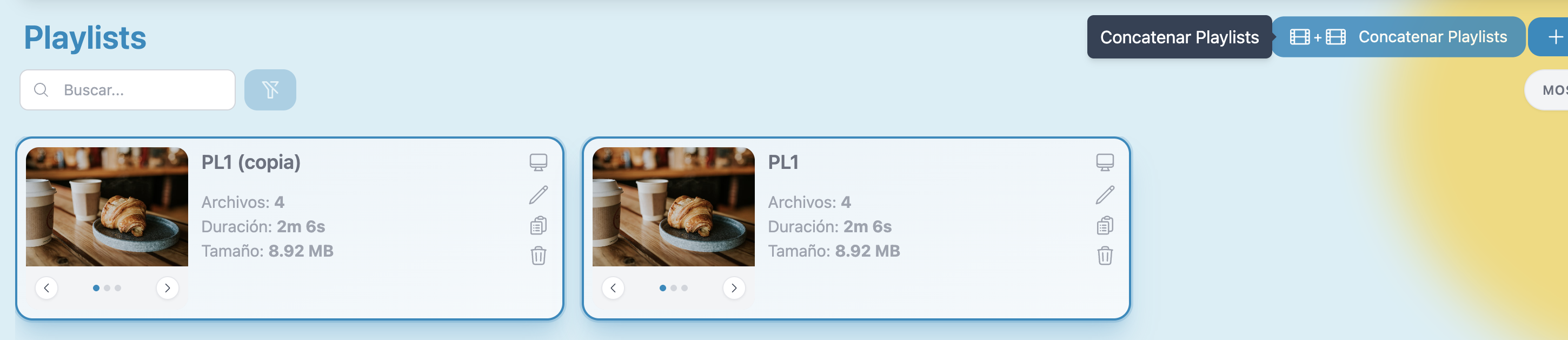
Step 2 — Confirm
Once you have selected two playlists, click Concatenate Playlists again. A confirmation dialog appears listing the playlists that will be combined:
"Are you sure you want to concatenate PL1 and PL1 (copy)?"
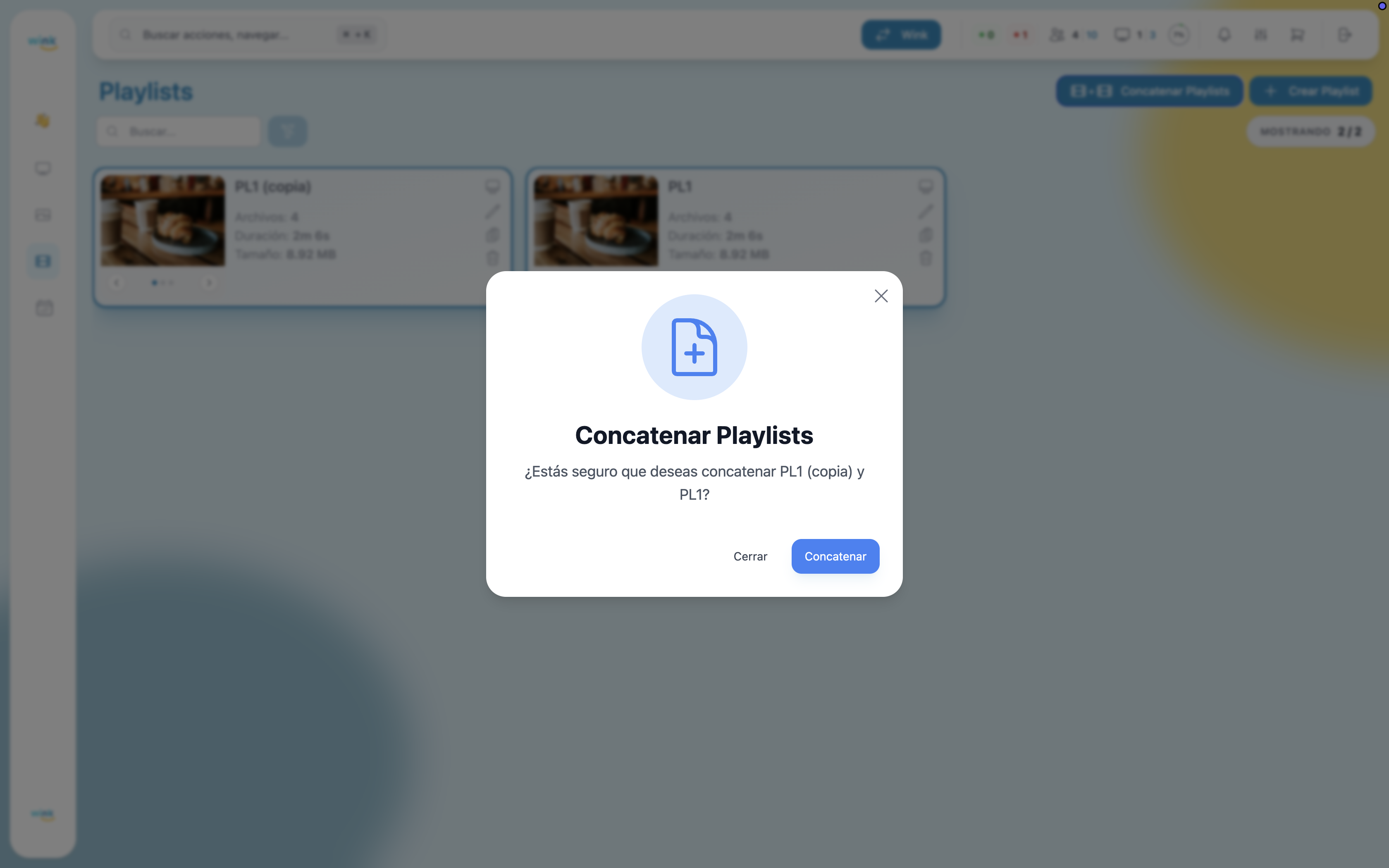
Click Concatenate to proceed.
Result
A new playlist is created combining all the files from the selected playlists in the order they were listed. Its name is automatically set to the names of the source playlists joined by + (e.g., "PL1 + PL1 (copy)").
The original playlists remain unchanged in your library.

Rename after concatenating
The auto-generated name can be long. Open the new playlist's editor to give it a cleaner name.
Two-playlist limit
You can only concatenate exactly 2 playlists at a time. Selecting a third will show a toast: "Limit reached — You can only select a maximum of 2 playlists to concatenate."